If your client is part of the MTD mandation, you must file a final declaration instead of the standard SA100.
For clients who are not part of the MTD mandation, file a standard SA100 self-assessment tax return.
- From the Clients menu, select Clients list.
- Change the client list view to either Active clients or a custom view that includes all relevant clients and select the client you need.
- Open the relevant client record.
- From the Personal tax returns widget on the client dashboard, select Start a new tax return (or Start new if there are existing returns).
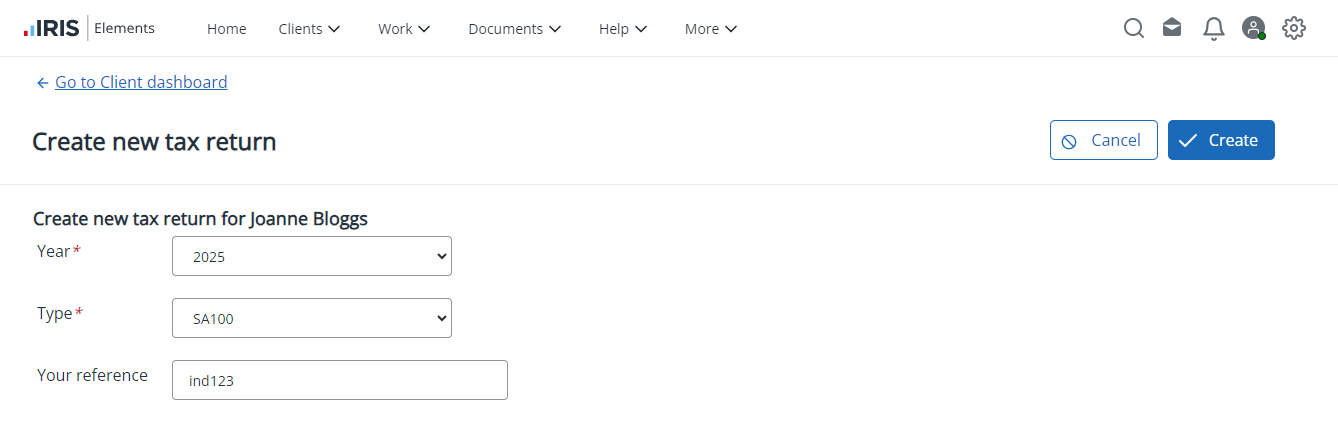
- Select the tax Year from the list. The earliest year supported is 2012.
- Choose the required tax return Type:
- MTDIT
- Your reference defaults to the client ID but can be changed.
- Select Create to start the process.
- Select Add a new section to fill out the form. Else, if sections have been automatically added, edit each in turn and adjust as required.
View a detailed list of the MTD final declaration sections.
- When complete, review then submit.
More information coming soon.
Optional tasks
You can save and return to the final declaration at any time before submission:
- Add an attachment.
- Check or change the status of tax returns.
- View detailed report to produce a PDF of the data entered so far.
- Download Tax Pack to view or produce a PDF of the full declaration.
After submission, if you want to update the final declaration, you must first cancel the original before resubmitting.

Enrol in the free IRIS Academy — Get ready for MTD course to learn about the MTD process and prepare for handling submissions.
IRIS Elements: Get ready for MTD
More videos and playlists available in our library.