View completed client risk assessments
You can see which client risk assessments are due to expire in theRisk Assessments widget on your home page.
- From the Clients menu, select Clients list.
- Change the client list view to either Active clients or a custom view that includes all relevant clients.
- Select the
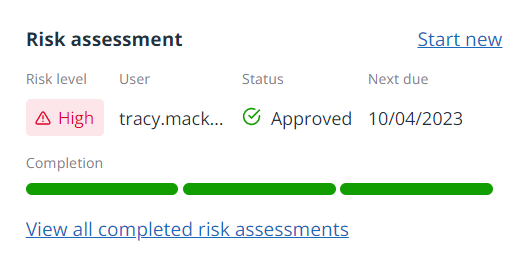
- Select Start new to create a new risk assessment for this client.
- Select View all completed risk assessments to view a list including the date, risk level, person who completed, status, and next due date. Select the down arrow to show the detail of the assessment.

You can't view completed client risk assessments if one is in progress. If you don't see the View all completed risk assessments link, check the status. If the current risk assessment is in progress, select Continue to complete it.
- Select Return to client profile to go back.
Learn how to view client risk assessments in IRIS Elements Anti Money Laundering
More videos and playlists available in our library.