Make an employee a leaver
When an employee leaves an organisation, their record for payroll must be updated to confirm they have left and the date.
Processing a leaver
- Go to Employees.
-
Select the required employee.
If more than one employee has left, go to Multiple leavers to process more than one without going into each record. If the employee needs to be paid after they have left, make a payment after leaving.
- Select Employment.
-
Select Employee has left.
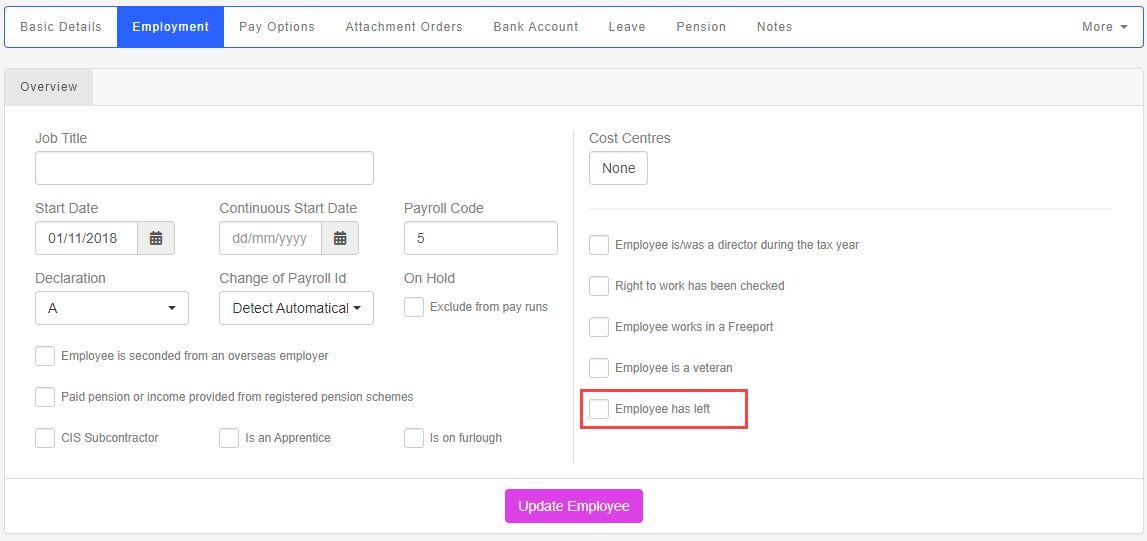
- Enter the Leave Date.
- If the employee died You must make all outstanding payments when an employee dies. - put the date the employee died into the ‘Date of leaving’ field. - final payments are subject to tax, so use the employee's existing tax code. - final payments are not subject to national insurance, so use NI letter X (unless your payroll software automatically takes zero rate employee's national insurance in the circumstances). - do not produce a p45. Payments to a person who has died are usually made to the personal representative or executor of that person’s estate., Employee is deceased must also be selected, as it is part of the reporting process.
- If required, select Add a Payment after leaving or Pay Accrued Holiday Balance.
- Select Update Employee.
Pension contributions are taken from the payment if the employee meets the criteria and is already a member of a scheme.
Multiple leavers
If you have multiple people all leaving on the same date, there is a way to do this quickly.
-
Go to Employees.
-
Select the employees you wish to mark as a leaver.
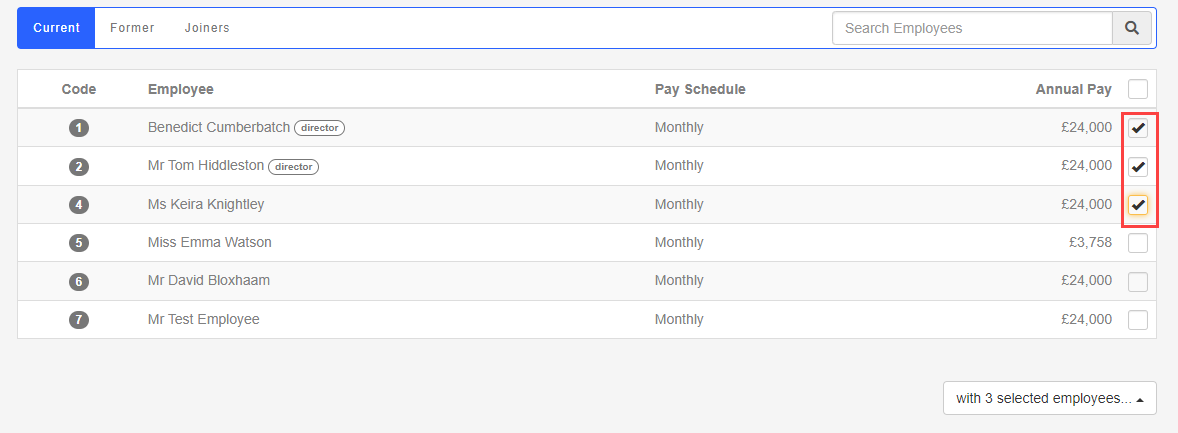
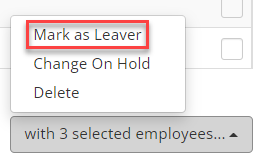
- Go to the with (selected employees) menu.
-
Select Mark as Leaver and enter the Leaving Date.
-
Select Update Employees.
Payment After Leaving: If you need to pay the employee after they have left, you need to make a payment after leaving.
Good to know...
-
Once marked as a leaver, you can produce a P45 for the employee.
-
You can make employees leavers in bulk.
-
If you need to pay the employee after they have left, you need to make a payment after leaving.
 Related topics: