Emailing customer statements using Statement Emailer
The Statement Emailer is part of the Emailer Suite of products. Use it to email statements automatically to customers, including any paid or outstanding invoices. The statements can also be printed for any customers who do not have an email address (if required).
You need to make sure the Statement Emailer has been correctly configured before proceeding. For more information, refer to Configure the Emailing Suite.
- Log into Statement Emailer as described in Log into Statement Emailer. The Statement Emailer window opens.
- Enter the required search criteria as described in Selecting documents and accounts in Statement Emailer. The table lists the accounts that you can select.
- Select the checkboxes next to the statements that you want to send. If any email addresses are missing or appear incorrect, refer to Add or amend email addresses in the Emailing Suite.
- Select the Email Statements icon and select the required SMTP configuration from the list. For more information on configuring SMTP settings, refer to Configure the Emailing Suite.

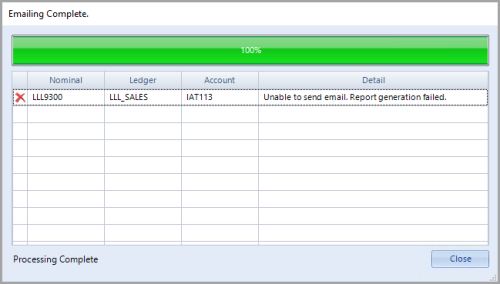
- The Emailing Complete dialog opens to confirm that the system sent the email. Select Close to return to the Statement Emailer window.
- If you receive this error, refer to Resolve the Report Generation Failed message.