Configure access to drill options
This guidance is only for IRIS Financials Version 7.0.2103 or earlier. If using version 7.0.2223 or later, go to Security for menus.
Drill options are the options that appear when you right-select on certain areas of the system. These include document enquiries and ledger lists.
You can turn access to some of the options in these drill menus on or off, based on a user's security role. Typically, these options are available to all users, but you can restrict access as follows:
- Select Home, then select Command Security from the menu.
- The left-hand panel lists the functions in IRIS Financials where you can set access. Expand each area by selecting Expand (+). Any area in which drill options are available is appended with the word Drill. For example, DocumentDrill refers to the drill/right-select options available in a document enquiry.
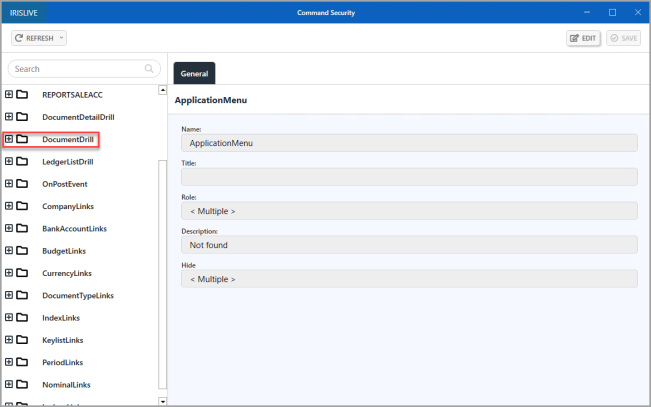
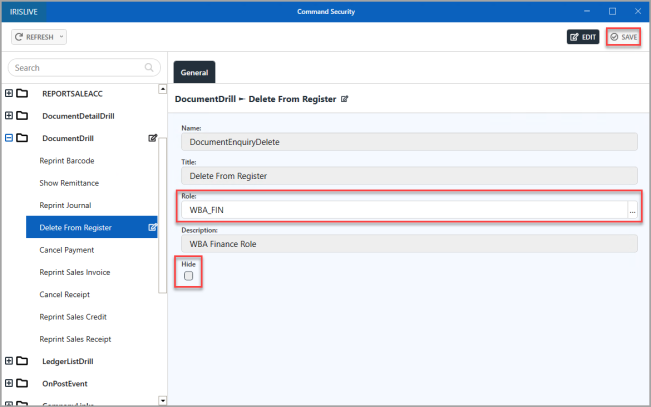
- Expand the required drill heading to display the options available, then select the required option. Select EDIT. The Role field is then enabled.
- To select the required security role, select Drill (...) in Role, then double-select to select the required security role from the Select a Role for Command window.
- The selected role appears in Role. If you want to hide the drill function from all users select Hide.
- If you want to edit other drill functions, select the next section/link and changes are automatically saved. Alternatively, select SAVE.
-
An Update complete message appears. Select OK to close the message and return to the window.
Related Topics