Apply global settings for all users
CUSTADMIN access only
Global settings apply to all users, whichever database or company they use, and include the following:
Some settings are not applied until the next time you log into the software. We therefore recommend that you log out and back in again after you change any settings.
- Select Home, then select Settings from the menu.
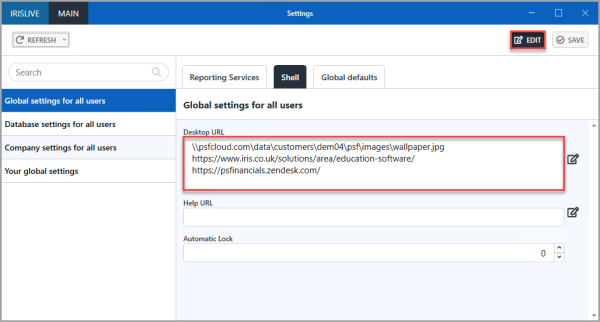
- The Settings window opens. Select Global settings for all users from the left-hand panel, then select EDIT to make all editable fields available for editing.
Settings for Reporting Services
Reporting Services settings are applied to enable reporting in IRIS Financials. Your system implementation sets these up. You should only need to change them if you change your SQL or reporting server.
Settings for the Shell
Use the Shell tab to enable:
-
extra tabs to be added to the Home page, such as a link to your establishment/organisation's website.
-
the link to help to be amended from the default help.
-
the time before the software automatically locks to be amended.
- On the Settings window, select the Shell tab.
- Select Global settings for all users from the left-hand panel, if not already selected, then select from the following options:
 Adding Extra Tabs to the Desktop
When you install the software, the desktop URL points to the default report server pages. You can customise this setting to show a background graphic, or links to one or more web addresses of your choosing.
- In Desktop URL, either overtype the reporting services web address with with the preferred background graphic or website address or add more extra addresses by pressing the Enter key and adding each address on a new line.
The desktop shows the links in the order you enter them. To change the order, cut and paste the address to the required order. -
When you have entered all the required desktop URLs and graphic links, select SAVE to apply the changes.
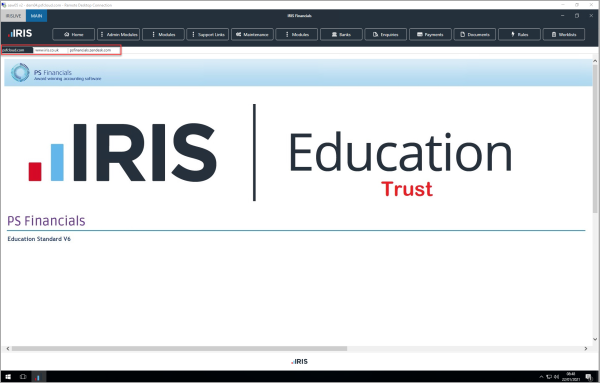
- Each URL appears as a separate tab on the desktop, as this graphic shows.
Adding a Help URL
When the software is installed, the Help URL
In Help URL, amend the existing address to your required help destination.
Setting the Automatic Lock Period
The IRIS Financials software includes a function that allows you to lock the application but continue using your computer. When the software locks, any processes or screens that are running stay open. You can continue them when you unlock the software. For more information, refer to Locking and Unlocking the Application.
Enter the number of minutes before the software automatically locks during a period of inactivity in Automatic Lock or use the up-down arrows. Select SAVE to apply the changes.
Global default settings
As its name suggests, use the Global defaults tab to apply default settings for all users of the application. Currently, this includes the facility to set the document refactoring mode. This determines how transactions appear in documents when you cancel or edit them. When you install the software, the default is No refactoring allowed.
You can no longer delete a document from IRIS Financials.
Select the Global Settings tab, then select one of these options from the Document refactoring mode list:
-
No refactoring applied - overwrites a changed transaction within a document but does not record a history of the changes made.
-
Transaction deletions refactored as reversals - records details of the cancelled transactions within the original document.
-
Transaction deletions & changes refactored as reversals - records details of edited transactions within the original document, with a record of the history of the changes made.
Select SAVE, to apply the changes.
New feature settings
When IRIS Financials introduces a new feature that is optional, the settings to switch on the feature are usually managed from Preview Features.
Where a new feature requires your organisation to switch it on to start using it, the instructions for the settings available in Preview Features are detailed in the Release Notes and Help Topics for the specific feature.