Confirm cheque media
When you have filled out all cheques in a payment run, confirm the media to complete the payment run.
If you closed the Cheque Printing window, or are confirming media at a later date — to display the list of cheques again, select the required payment run, then PRINT CHEQUES.
For each
-
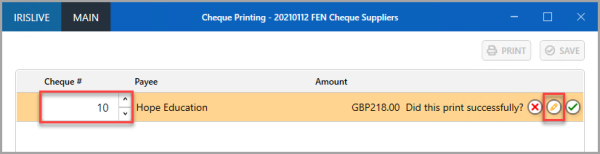
- Select the Pencil icon.
Enter the number in Cheque #.
Cheque document types are usually set with a controlled number range. If the cheque number you enter is different to the numbers in the set range, update the range.
-
To confirm the cheque has
- SAVE the updates.