Write off items in requisitions or orders
Use the write off function when a supplier is unable to fulfil the full quantity of an order. For example, if an order has been authorised for 100 books but the supplier can only deliver 75, 25 of the books would need to be written off.
Use the write off function to reduce the quantity in either the requisition (if used) or purchase order document. This makes sure that you can progress the remaining items in the order through the rest of the purchasing cycle. Using the previous example, the remaining 75 books can then be progressed.
If you are unsure whether to write off or cancel, refer to When to write off and when to cancel.
If a supplier is unable to fulfil an order and does not expect to be able to, you can edit the quantity on the requisition or purchase order, providing nobody has authorised the document.
These instructions explain how to write off items in a requisition (the process is the same for purchase orders).
- Select the required document type by selecting the applicable icon.
 Speak to the person in your establishment / organisation who administers the system, that is, has a CUSTADMIN login, if these icons are not available to you.
- Either scroll through the list, or search for the required supplier via the Search Criteria field. You can enter any element of the supplier’s account code or name/title. The list is reduced based on the criteria entered. If the requisition was added to the system without a supplier, you need to deselect Only show suppliers with items to progress, then select the required supplier from the list.
- Select the required supplier.
- The Select Your Detail Lines window displays. Select the checkboxes for each item line you want to write off, then select Write Off. It is essential that you only select the lines you want to be written off.
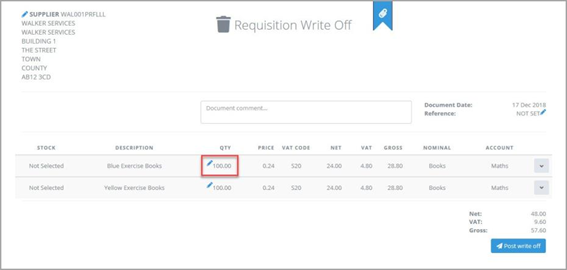
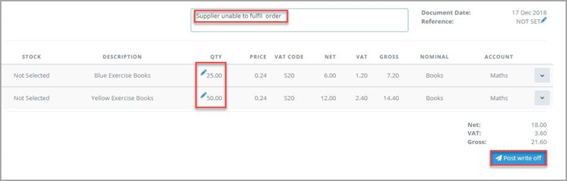
- The selected lines appear in a Requisition Write Off document, as this graphic shows.
-
Select the Edit icon adjacent to the quantity (QTY), then enter the quantity to be written off (this must be greater than zero and less than the original quantity).
If you do not need any of the items on a line, make sure you cancel the item rather than write the item off. For more information, refer to Cancel items or documents.
- Repeat for any other lines with items to write off, then select Post write off.
- The next steps depend on whether you are writing off items in a requisition or purchase order.
Requisitions with written off items
For authorised requisitions that have had items written off, two messages appear, as this graphic shows.
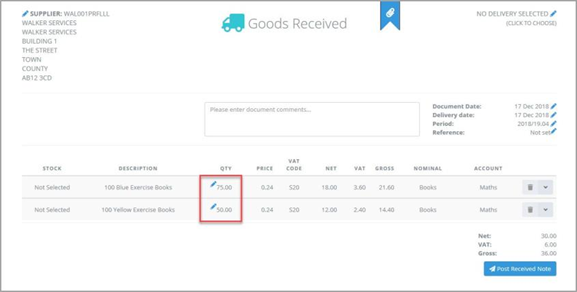
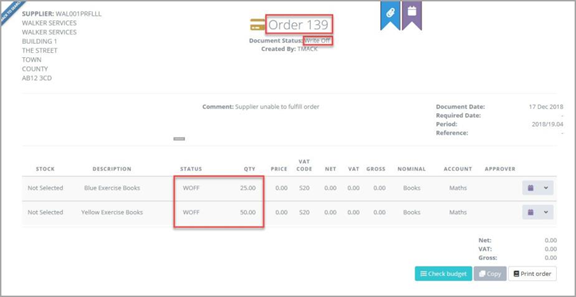
The system creates a purchase order document with the details of the written-off items (25 blue exercise books and 50 yellow exercise books) and gives it a status of WOFF.

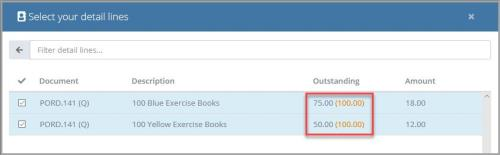
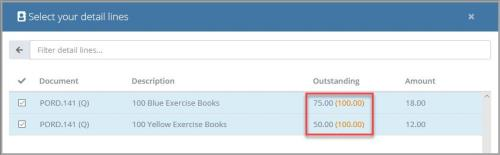
The remainder of the requisition can then be progressed to a purchase order document. The items available for selection show the amended quantities together with the original number displayed in brackets, as this graphic shows.
The system creates the other purchase order document for the amended quantities of items that the supplier needs to deliver (that is, 75 blue and 50 yellow exercise books).
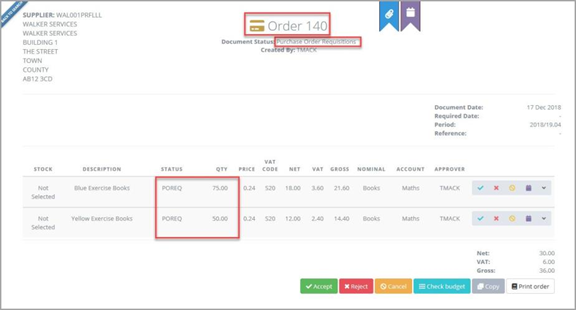
Once posted, it needs to be authorised in the usual way.

Purchase orders with written off items
For authorised purchase orders that have had items written off, a message appears, as this graphic shows.
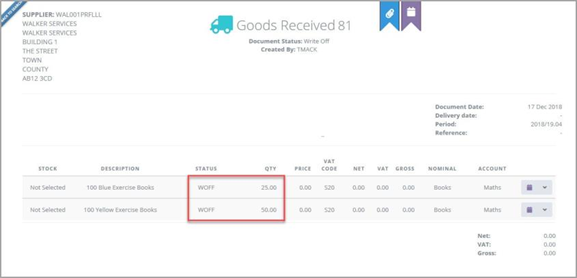
A goods received note (GRN) is automatically generated for the items that have been written off.

Using the same example, the GRN shows two lines with the number of items written off.
When the order arrives and you create the GRN, the items available for selection show the amended quantities, together with the original number displayed in brackets, as this graphic shows.
The resulting GRN then displays the number of items expected.