Cancel items or documents
Use the cancel function for a variety of reasons where you want to prevent an item or document progressing further in the purchasing cycle. Use cancelling to cancel an item or order, and only where you no longer need the full quantity of an item or document. Do not use cancelling to amend the quantities within an order. Use the write off function where you need to amend quantities.
If you are unsure whether to write off or cancel, refer to When to write off and when to cancel.
Use cancelling where:
-
a supplier is unable to supply a specific item or order.
-
an order has been placed with an incorrect supplier or where a better price has been identified with another supplier.
-
incorrect items have been delivered and are to be returned.
-
items are broken or damaged and the full quantity of the items are being returned.
-
a non-order invoice has been raised directly in IRIS Financials and therefore the other IRIS Financials Purchasing documents are no longer required.
-
the item is no longer available.
-
the item is no longer required (for example, the supplier is unable to deliver in time).
You can cancel documents at any stage of the purchasing process.
- From the Home screen, select Document Search.
- The Search Criteria window displays. Enter your required search criteria in the top section, then select Search. For more information, refer to Search for and manage documents.
-
Select the View Document icon adjacent to the required document in the Search Results panel to open it.
- To cancel a specific item (for example, you were told all the exercise books had arrived, but in fact only the blue ones were delivered), select the Cancel icon adjacent to the required item. To cancel the whole document, for example, if the supplier sent incorrect items, select Cancel.
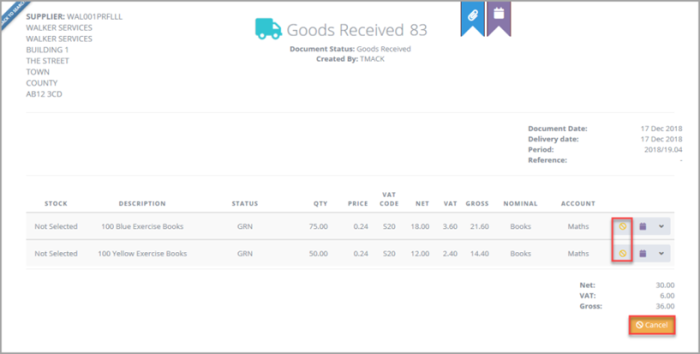
- A window opens prompting for the reason the item/document is being cancelled (mandatory). Select the down-arrow in Reasons.
-
Select the reasons the item or document is being cancelled from the list.
Your System Administrator can amend the reasons displayed, so they may be different to those listed in this graphic.
- You must also add an explanation in Rejection Comments.
- Select Confirm to complete the cancellation. Either of the applicable messages appear.
The selected document displays.
When cancelling a document, the internal links to related documents are broken. We therefore recommend taking note of any related documents before cancelling, if required. This is achieved by selecting the View Events icon, then selecting the Links tab. A good idea is to write the document numbers in Rejection Comments (as shown in the following step).