Process purchase orders with supplier-provided numbers
Some suppliers, such as Amazon, provide a purchase order number at the point you order the goods. You can now add the supplier purchase order number in IRIS Financials Purchasing.
You must make sure the supplier account in IRIS Financials has been marked as a supplier that provides its own purchase order number. Refer to Configuring IRIS Financials for Suppliers that Provide their Own Purchase Order Numbers.
You must also set up a tolerance level if you require amended purchase orders to be re-authorised. Refer to Configure tolerance limits for amended purchase orders.
Extra steps in your organisation’s authorisation workflow let you enter the supplier purchase order number on the purchase order in IRIS Financials Purchasing.
The process for purchase orders where the supplier provides their own purchase order number is as follows:
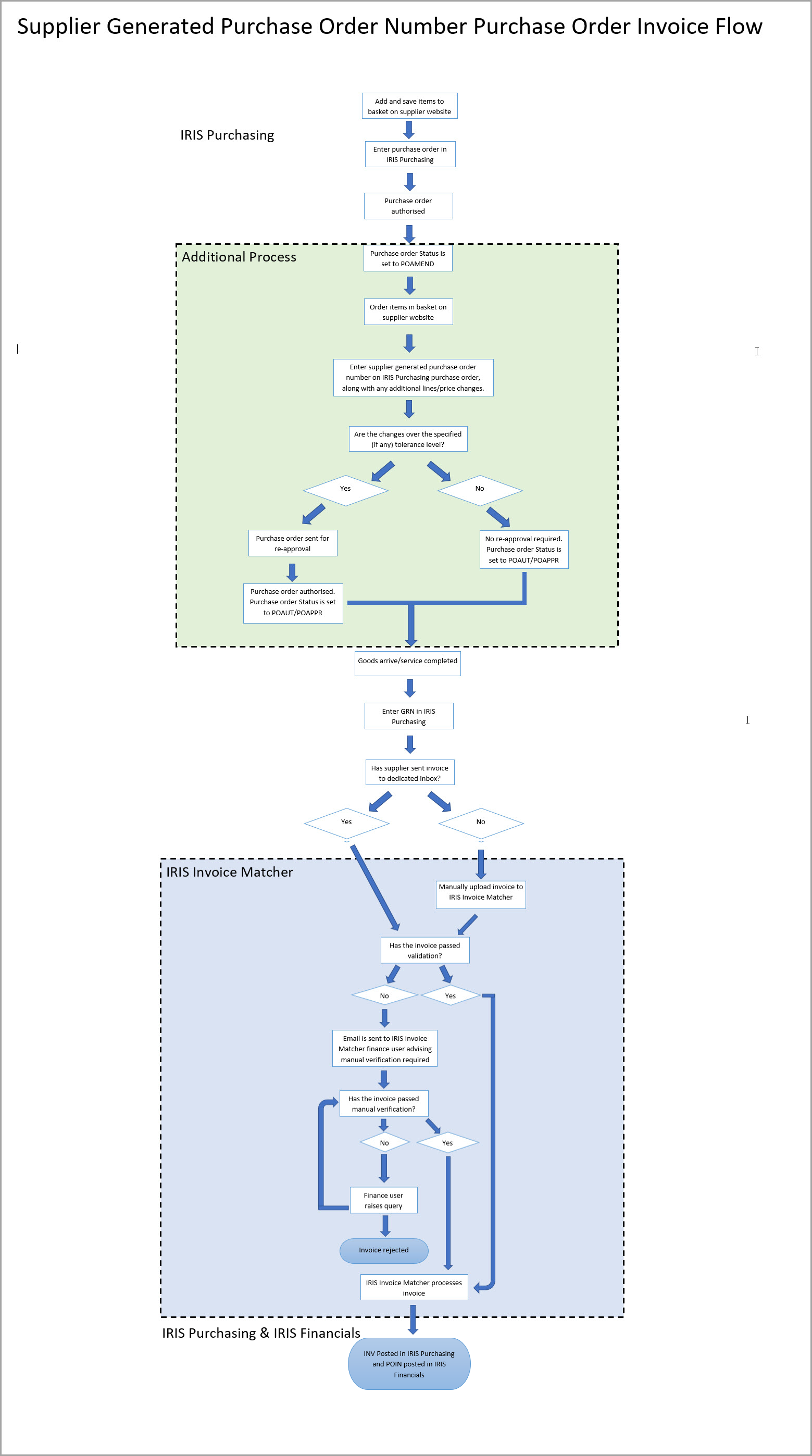
This topic assumes you are familiar with the purchase order, goods received, and invoice process in IRIS Purchasing. As such these processes are not covered in this topic in detail. If you are unfamiliar with the process, refer to our IRIS Purchasing Help.
-
Search for and add the required items to your shopping basket on the supplier website and save the basket.
-
Log in to IRIS Financials Purchasing and enter the purchase order in the usual way.
The system sends the purchase order for approval. When the purchase order is approved, its status changes to POAMEND. This means you can make changes to the purchase order once the goods have been ordered on the supplier website.
-
Log on to the supplier website and order the goods that you previously saved in your basket. If there is any extra carriage, promotions or price changes on the order you need to edit the purchase order in IRIS Financials Purchasing to include these and add the purchase order number provided by the supplier.
-
When you have ordered the items, use the Document Search to find the purchase order in IRIS Financials Purchasing. Select Purchase Order (PORD) from the Document Type list, then select Purchase Order - Amend (POAMEND) from the Current Status menu.
-
Select View Document next to the applicable purchase order.
-
The purchase order appears. Select EDIT.
-
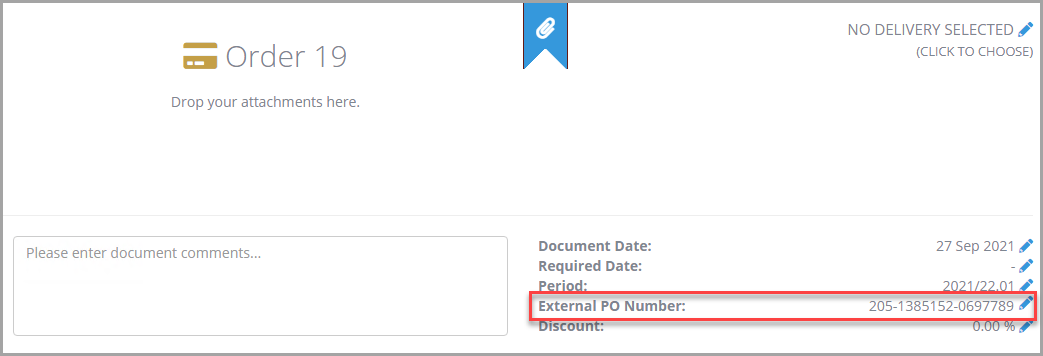
Select the External PO Number field and enter the supplier's purchase order number.
The External PO Number field is mandatory. You need to fill in this field before you can re-post the purchase order.
-
Select the Edit (pencil) icon to make changes to existing order lines and add any other lines for carriage or discounts as necessary.
You can now enter negative values in IRIS Financials Purchasing for discounts.
-
When you have finished making the changes, select Post Order. The purchase order may be re-sent for approval, depending on the tolerance limit for amendments set by your organisation. Refer to Configure tolerance limits for amended purchase orders.
If the purchase order does not require re-approval, the Status will automatically change to POAPPR. If it does require re-approval, it remains at POAMEND until it has been authorised.
-
Once the goods have been received, you can enter the goods received note in IRIS Financials Purchasing in the usual way. Refer to Process goods received.
When you select the detail lines to add onto the GRN, the External PO Number field appears instead of the IRIS Financials Purchasing generated purchase order number.