Apply budget checking settings for purchasing documents
This guidance is only for IRIS Financials Version 7.0.2103 or earlier. If using version 7.0.2223 or later, go to Access to IRIS Financials Purchasing documents.
When you post requisitions or purchase orders in IRIS Financials Purchasing, you can set whether the system checks the amount against a budget, and what happens if the amount exceeds the budget. Apply the required settings in the Distribution module. You can also set up how budget information appears and managed in IRIS Purchasing. For more information, refer to Apply budget settings.
- From the Windows Start menu, select PS Financials, then select Distribution.
- Log in using your IRIS Financials
- Go to Masters, select Workflow, then select Document Types.
- Select Purchase Order or Requisition from the list (depending on which document you are applying the budget settings to), then select Workflow....
- Select the required user group from the panel for example, PSFADMIN, then select Edit Status....
You need to repeat the process for each user group that needs the budget settings applied. - Select POREQ for requisitions or POAUT for purchase orders from the panel.
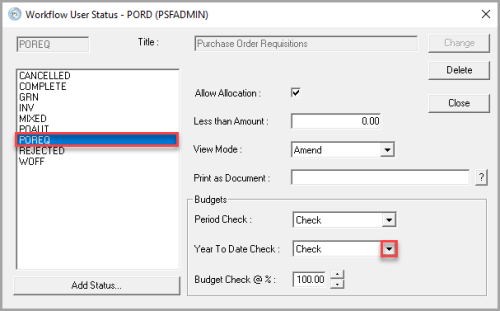
- Set the budget information in the Budgets section. The Period Check field has been removed from IRIS Purchasing and can be ignored. From the Year to date list, select one of these options: No Check– allows you to post all documents, regardless of whether they are within specified budget limits.
Check – displays a warning if the document being posted goes over the specified budget limits.
Enforce – prevents any documents over the specified budget requirements from being posted. - After you apply the required settings, select Change to save your changes, then select Close.