Apply budget settings
In you can monitor and check budgets at various stages during the purchasing process. You can apply a variety of settings to determine the ways in which budgets are checked and displayed.
Any budget settings applied in these settings affects all IRIS Financials databases. If you use more than one database, note that these are also affected by any settings applied.
- From the Home page, select the Settings icon.
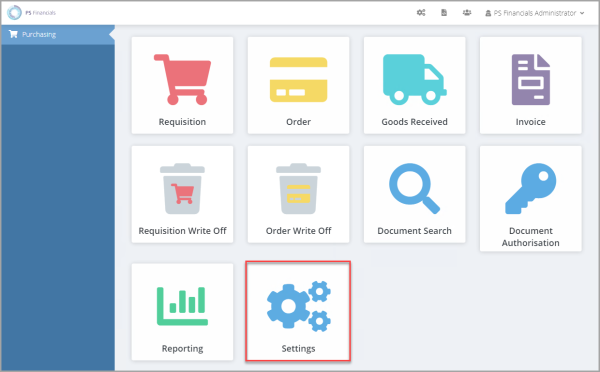
- The Purchase Settings panel opens. Select the Budget tab.
- Select the required options, then select Save.
These options are available:
Display the check budget option
This option determines whether the Check Budget is available when users post requisitions or purchase orders. Users can select Check Budget to assess the impact of the purchase on any applicable budget. Select Yes or No for Display budget check button, as required.
Select the budget duration to check
This option determines how budgets are to be checked. Select the required option from the Budget Check Type list. The options available are:
-
Year to Date - Checks the posting to determine whether the budget is within spending limits for the current financial year.
-
Full Year - Checks the posting to determine whether the budget is within spending limits for the full year budget.
Include the register period in budget checks
This option determines whether the budget is checked against the postings made to the Register (the holding period used to store unauthorised accounting documents). When a registered document is authorised, it is moved into the live period, referred to as the books.
Effectively, selecting Yes for Include register checks the budget against both authorised and unauthorised purchasing documents.
Check the budget at account level only
By default, budgets are monitored at nominal and account level. When a budget check takes place, the system initially checks the budget against the nominal code, then the account code. Select Yes for Ledger account code to check the budget at account level only, bypassing the nominal.
By default, when you post a purchasing document, the system checks the budget assigned to the ledger and nominal account in IRIS Financials (in Maintenance, then Budgets). You can set the system to check only the ledger account.
As standard, IRIS Financials Purchasing checks against the budget assigned to the nominal and account (in Maintenance, then Budgets). The Ledger account mode feature checks the budget against the Accounts only.
 Setting Nominals for Account Only Budget Check
- To determine the nominal you want the budget to be calculated at account level only against, in IRIS Financials, select Maintenance, then select Nominals from top menu.
- The Nominal Maintenance window opens. Select the nominal you want to check in the panel, then select the Indices tab, then select EDIT.
- Select BUDGETCHEC - Budget Check By Account from the Indices panel, then select YES from the Values panel, then select SAVE.
Select the default budget code
This determined which budget is checked for the current logged in user. To make this setting, select an option from the Default budget code drop-down list, which contains all available budgets you set up in IRIS Financials.