Get started - PS Cloud Remote Desktop Web Client
PS Cloud Remote Desktop Web Client is the best way to connect to PS Financials using a web browser. All PS Cloud users can access PS Cloud Remote Desktop Web Client. You do not need to sign up or install anything extra.
PS Cloud Remote Desktop Web Client is an alternative method of connecting. If you prefer to use the Remote Desktop connection file, download a new version of the file. Follow the steps in Download a new RDP shortcut.
In some circumstances the feature may help you with screen rendering issues. It is also useful if your original remote desktop shortcut is unavailable and you need immediate access.
There are a number of restrictions when using PS Cloud Remote Desktop Web Client:
- Your browser must support HTML5. Most modern browsers do.
- You cannot print to your local printer within PS Cloud Remote Desktop Web Client. You can still save a document to your PS Cloud drive (X:). This lets you print when you log in later using the standard remote desktop icon.
- You cannot access your local drives within the PS Cloud Remote Desktop Web Client.
- You cannot copy files or formatted text to or from your local desktop.
- You can log in using an iPad, but as it is an unsupported device, functionality is limited.
You can still access your PS Cloud desktop and Customer Specific (X:) drive and save any work as required until you can log in using the standard remote desktop shortcut.
Access PS Cloud Remote Desktop Web Client
-
Navigate to https://webaccess.psfcloud.com/RDWeb/Webclient/.
PS Cloud Remote Desktop Web Client may take a few minutes to load the first time you log in on a new device, because it needs to gather your settings.
- The Sign in prompt appears. Enter your PS Cloud Username and Password and select the Sign in.
- Select the Remote Desktop Icon on the PS Cloud Remote Desktop Web Client Home page.
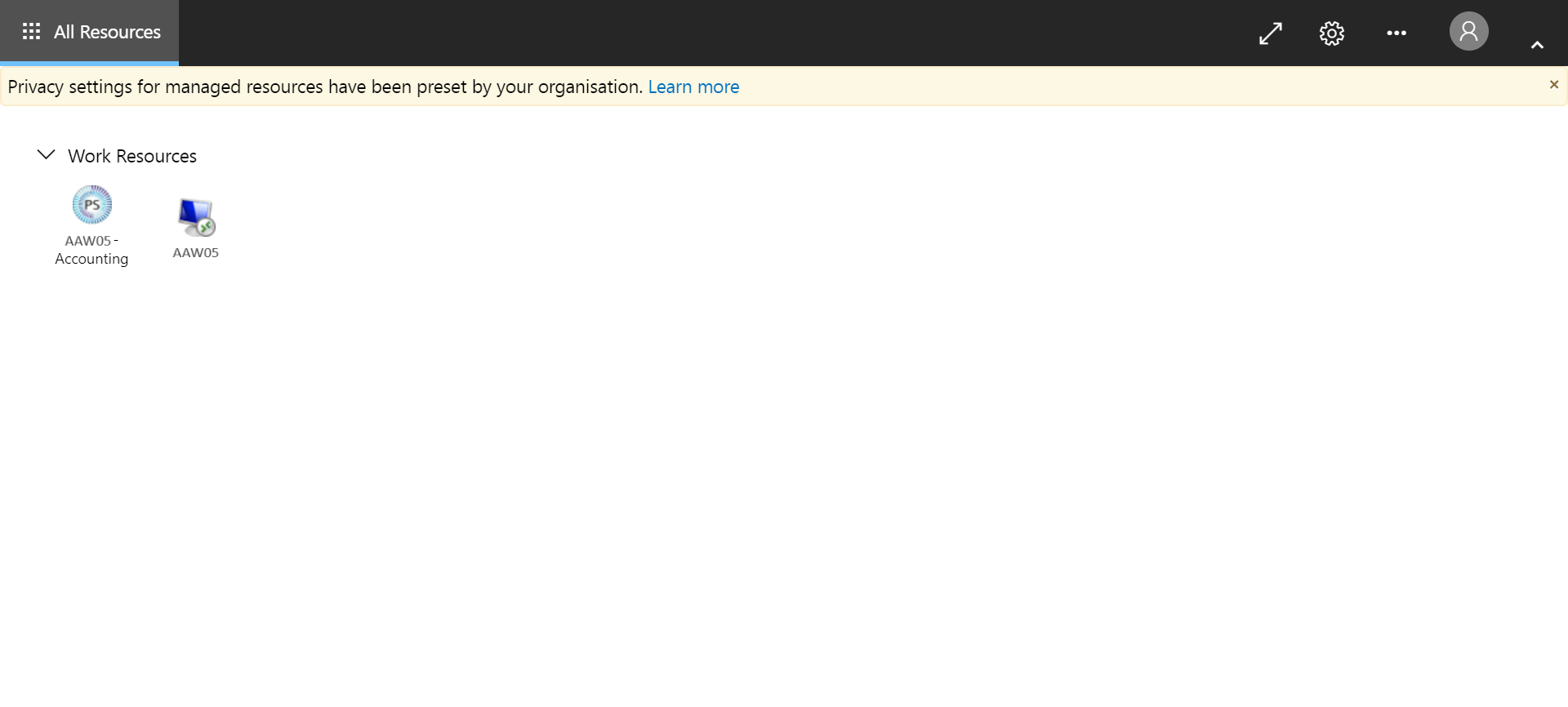
-
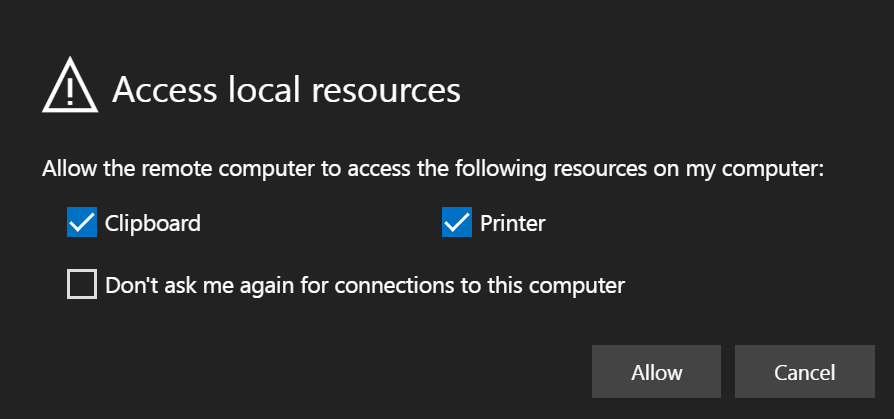
The Access local resources prompt appears. Select the Allow.
You cannot access the clipboard (you can still cut and paste plain text) or local printers, even if these checkboxes are selected.
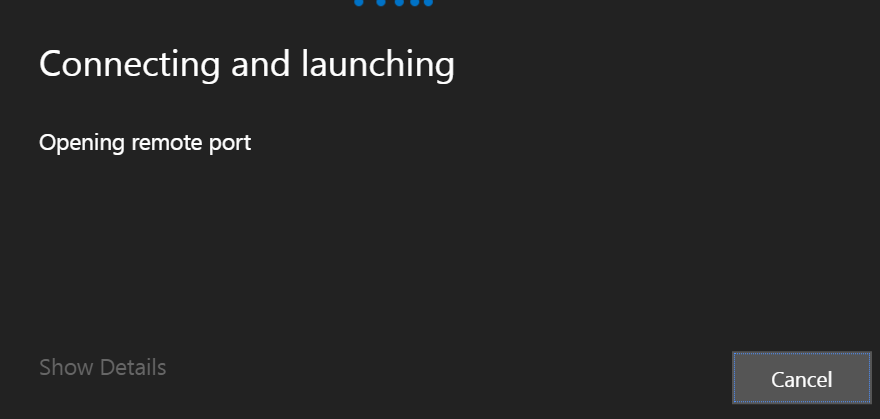
- The Connecting and Launching window opens.
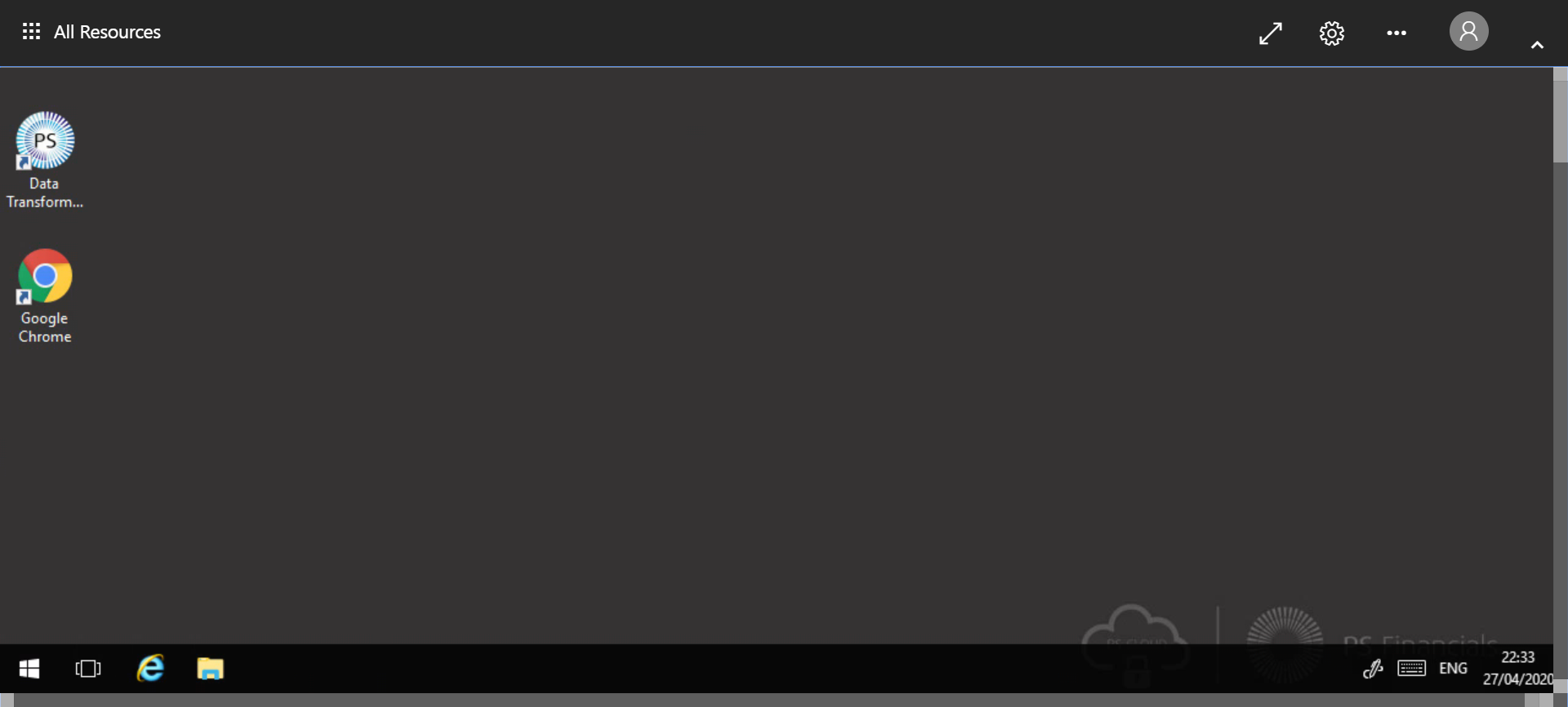
- Your PS Cloud desktop appears. You have access to the Start menu along with File Explorer which provides access to your Customer Specific (X:) drive.
Fullscreen mode
The Enter Fullscreen displays the PS Cloud Remote Desktop Web Client using the full dimension of your screen.
To exit, press Esc on your keyboard or select the Exit Fullscreen. 
Unpin navigation bar
The Unpin Navigation bar removes the navigation menu from PS Cloud Remote Desktop Web Client.
When you unpin the Navigation bar, it appears as a small icon, as this graphic shows.
To restore the Navigation bar, select on the icon. To repin the Navigation bar, select the Pin.