Download a new RDP shortcut
If you have lost your PS Cloud Remote Desktop (RDP) shortcut, you can still log in to your PS Cloud environment using our new PS Cloud Remote Desktop Web Client. This topic explains how to log in to the client and retrieve your RDP shortcut.
The PS Cloud Remote Desktop Web Client is an extra way to connect to IRIS Financials using most modern web browsers. All PS Cloud users can access PS Cloud Remote Desktop Web Client. You do not need to sign up or install anything extra.
There are a number of restrictions when using PS Cloud Remote Desktop Web Client:
-
Your browser must be able to support HTML5 - most modern browsers support this.
-
You cannot print to your local printer within the PS Cloud Remote Desktop Web Client. You can still save a document to your PS Cloud drive (X:). This allows you to print when you log in using the standard remote desktop icon at a later date.
-
You are not able to access your local drives within the PS Cloud Remote Desktop Web Client.
-
You are unable to copy files or formatted text to or from your local desktop.
-
You can log in using an iPad, but as it is an unsupported device, functionality is limited.
You can still access your PS Cloud desktop and Customer Specific (X:) drive and save any work as required until you can log in using the standard remote desktop shortcut.
-
Go to https://webaccess.psfcloud.com/RDWeb/Webclient if your organisation has been a PS Cloud customer before June 2021.
Go to https://webaccess02.psfcloud.com/ if your organisation has been a PS Cloud customer after June 2021.If using the Windows Server 2022, go to https://webaccess03.psfcloud.com/RDWeb/Webclient/.
The PS Cloud Remote Desktop Web Client may take a few minutes to load when you first login on a new device, as it needs to gather your settings.
-
The Sign in dialog opens. Enter your PS CloudUser name and Password, then select Sign in.
-
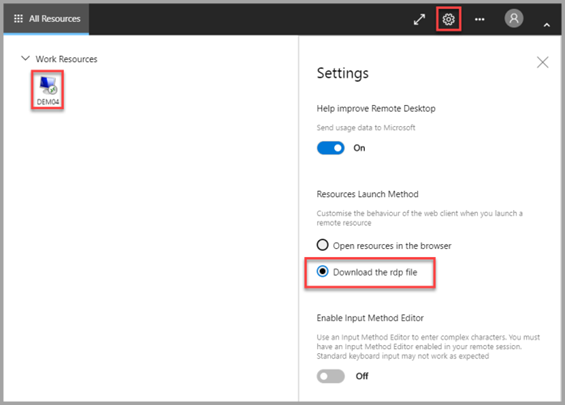
Select the Settings icon on the top menu, then select Download the rdpfile.
-
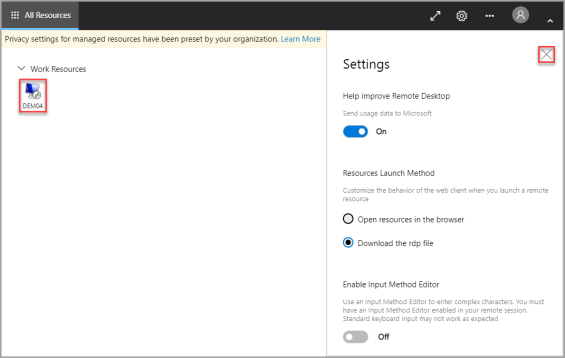
Select X to close the Settings panel, then select the remote desktop icon under Work Resources.
-
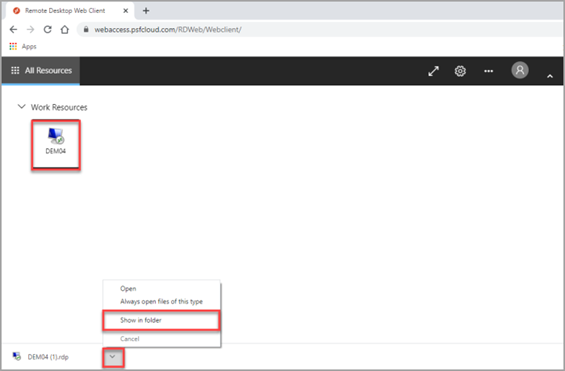
When the download finishes, the RDP shortcut appears at the bottom of your screen, depending on your browser. Select the download menu icon, then select Show in folder, as this graphic shows.
-
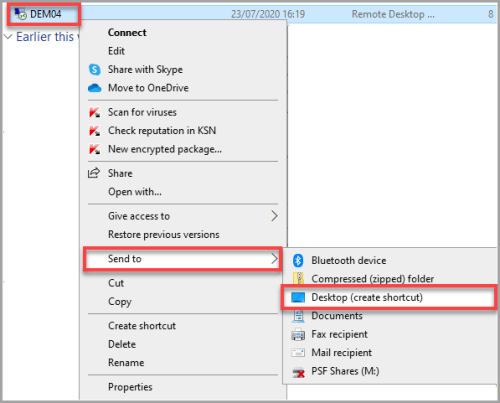
The folder where the RDP shortcut has been downloaded to appears. Right-click the RDP shortcut, select Send to > Desktop (create shortcut).
-
Minimise all windows to display your desktop. The next step is to assign your username to the shortcut so that when double-selected, you only need to enter your password.
-
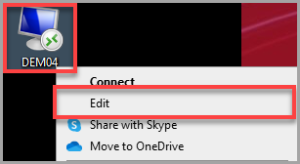
Right-click the RDP shortcut icon, then select Edit from the pop-up menu.
-
The Remote Desktop Connection dialog opens. Enter your PS Cloud Username, then select the Save.