Log in to PS Cloud
To log in to PS Cloud, locate the remote desktop connection icon on your computer. If you do not have this saved as a shortcut on your desktop, refer to Download a new RDP shortcut.
- The icon usually shows the name of your cloud server underneath, for example, AAW05. Double-click the remote desktop connection icon.
- The Remote Desktop Connection dialog opens. Select Connect.
- The Windows Security dialog opens for you to enter your login credentials. Enter the domain name PSFCLOUD\ followed by the username. This is typically the server name, a full stop, the first initial, then the surname, for example, PSFCLOUD\AAW05.JSMITH
- Enter your password (case-sensitive), then select OK.
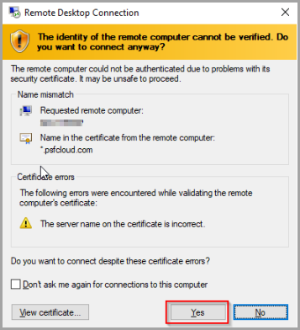
- The Remote Desktop Connection dialog opens. Select Yes.
- Once logged in, the remote desktop appears. Some of the applications are already shown as shortcut icons, others are accessible from the Start menu in the bottom-left corner (you can add further shortcuts later if you want to).
Did your know?
You can add Multi-factor authentication for logging in to the PS Cloud.