Budget Holder Statement report
The Budget Holder Statement report shows the spend against a specified account for each period, grouped by nominal or period. You can expand the initial results to show the transactions that make up the amounts.
To open the Reporting Suite, go to Processing Modules, then select Reporting Suite. For more information about the budget reports, go to Produce budget reports.
This report uses commitments. The commitments in the report depend on settings in IRIS Financials that the person in your establishment/organisation who administers the system controls. This is someone who has a CUSTADMIN login.
You can group the report by nominal or period.
-
Please select the Company: Select the company to run the report for. You can select only one company at a time.
-
Please select the Location: Select a location to report on. You can select only one location at a time. The locations available depend on your security settings.
-
Please select the Ledger: Select a ledger to report on. Open the list and select the options you need. You can select multiple ledgers at once, but you can select only ledgers related to the location you selected. The ledger list also depends on your security settings.
-
Please select the Account(s): Select an account to report on. You can select multiple accounts at once: open the list and select the options you need. You can select only accounts linked to the ledgers you selected.
-
Please select the Budget: Select a budget to compare the report against. You can select only one budget at a time.
-
Please select the Period: Select the period to report against. This controls the Current Period and Year to Date columns in the report. For example, if you select Period 5, the Current Period shows period 5 data and the Year to Date shows periods 1 to 5.
-
Include Year End Period(s)?: Use this to include the year-end period transactions in the report. These are usually adjustments rather than in-year transactions, so you do not usually need them.
-
Group Report by: Select Nominal or Period. Grouping by nominal summarises the results for the selected account by each nominal code. Grouping by period summarises them by period.
What data is in the report
Grouped by nominal
The Budget Holder Statement contains a summary of the account expenditure by nominal code. You can expand each nominal to show the amount, and expand it again to show the relevant documents.
The header has three sections: Spent, Budget, and Left to Spend.
-
Spent: This is the total actual spend for the selected account. The detail lines on the report show the transactions.
-
Budget: This shows the selected budget for the period for the selected account.
-
Left to spend: This adds the Actual and Commitment values and subtracts the total from the Budget value. This shows the amount left to spend against the budget for the selected period.
The individual transactions show Nominal, Actual, Budget, and Left to Spend values against each applicable nominal. You can expand the Actual column to show further details about the amounts.
-
Nominal: The nominal code used in the transactions for the selected account.
-
Actual: Actual spend against each nominal for the selected account. To expand this column, select the plus symbol next to each value. The expanded column also shows the Supplier, Document Type and Number, Document Date, Status, Description, and Value.
-
Commitments: Shows any purchase orders that have not been invoiced.
-
Budget: Budget allocated against each nominal for the selected account.
-
Left to Spend: Budget Value minus Actual and Commitment values.
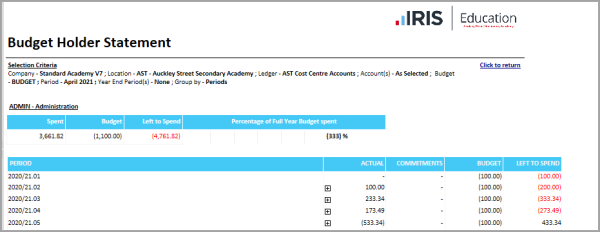
Grouped by period
You can also group the details in the report by period. Use the Group Report By criteria to control this.
The report shows the spend broken down by period: