Cancel a document in MyPortal
If you have raised a document in myPortal, i.e. a REQ, PORD or GRN, and you need to cancel it, you need to go into Distribution to do this.
If it is an Invoice document, it is posted to the books and you have to cancel it in Accounting.
Cancelling a document - Whole Document or Single Line(s)
Load Distribution - either from the menu option within Accounting or by logging into it separately.
-
In Distribution, select the Binoculars to search or select View > Document(Search)
-
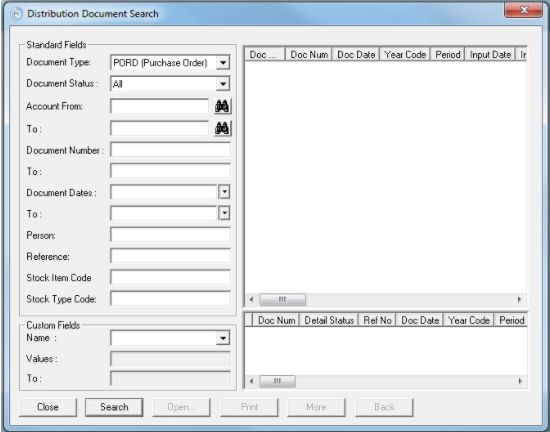
A box similar to below appears.
-
Select your document type and any other details you may know to narrow your search down, for example the document number, date, or supplier account.
Your document appears in the top window and the detail lines appears in the bottom window
-
Double-click on the document in the top window to open up the document view box.
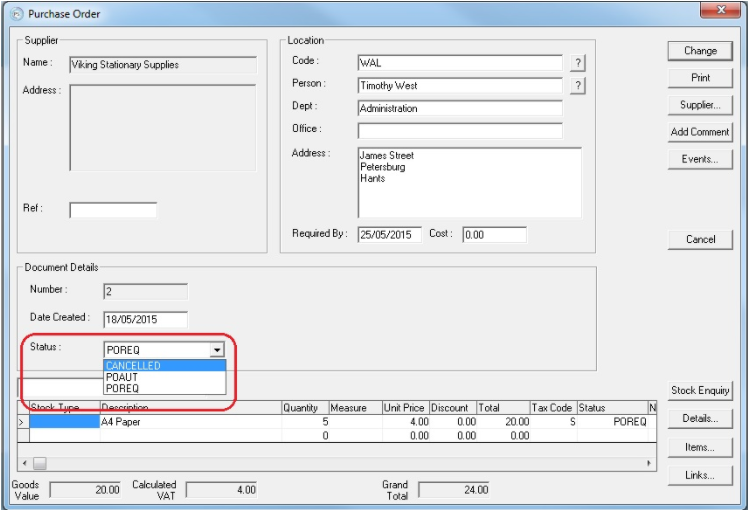
- To cancel the whole document, select the drop-down in the box titled Document Details next to the word Status.
- Open up this drop-down and select CANCELLED to cancel the document and then, select Change in the top right to apply the changes.
- To cancel a single line on a document, highlight the relevant line and select Details. When the window opens, select CANCELLED from the drop-down list and select OK.
-
Select Change on the top right to apply the changes.
-
Your document is now cancelled.
If the box next to Status is greyed out, then you do not have the security access to be able to change the document and you should contact your System Administrator for them to assign the task of cancelling the document to someone with a suitable access level or grant you more permissions.
For more information on changing a users' settings, see Allow usergroup access to MyPortal