Allow usergroup access to MyPortal
Once a User Group is created, the Workflow needs to be designed.
The Workflow is accessed through PS Distribution which can be accessed from the Start menu.
Workflow access is in two parts – who has access to which documents and who is notified when a document reaches a certain stage.
In its simplest terms, Workflow determines whether Users assigned to a User Group can do the following -
- Create or view a Requisition
- Authorise a Requisition
- Create or view a Purchase Order
- Authorise a Purchase Order
- Input or view a Goods Received Note or
- Input or view an Purchase Order Invoice
NB - Creation and Authorisation of a Requisition are only required if the system is set up to raise ‘on system’ Requisitions. Requisitions are in house Documents between the Requisitioners and Authoriser, which, once authorised, are sent to the Finance staff to create a Purchase Order.
Each User Group can be given access to any of the following four areas (Requisition is optional) -
- Requisition (REQ) – this allows Purchase Orders to have two Authorisers (for example, a Budget Holder at Requisition stage and then the Finance Manager at Purchase Order stage.)
- Purchase Order (PORD) - once authorised a Purchase Order is produced to be sent to the Supplier.
- Goods Received Note (GRN) – confirming the details of the Delivery /Despatch Note with the original Purchase Order.
- Purchase Order Invoice (INV) – confirming the details of the Purchase Order Invoice with the original Purchase Order and the Goods Receipt and posting it to the Accounting system for payment.
- User Group’s access to Documents is designed and maintained within Distribution. You will need to log in to Distribution (using the PSFADMIN user log)>Masters>Workflow>Document Types.
-
Select the Document required from the above. None of the other Document Types seen in this list are used in a Standard Academy database, so they can be ignored.
-
Select Workflow.
-
A list of current User Groups assigned to the Workflow appears on the left hand side of the screen. To add a new User Group, select Add User Groups.
-
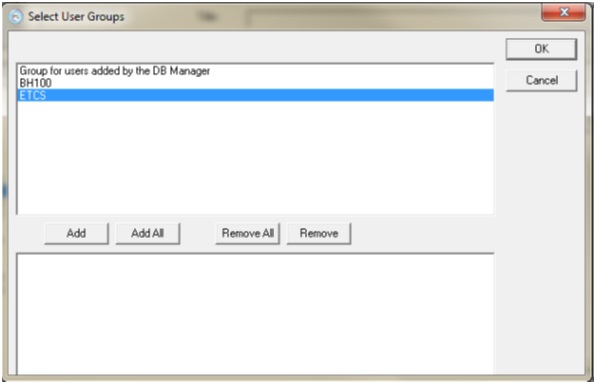
The following window is displays.
-
Select the relevant User Group(s) from the list in the top box and select Add.
-
The User Group(s) is moved to the bottom box. Select OK.
-
The new User Group appears in the Workflow for that Document.
Tick Allowed to Create if the User Group should have authority to create the document.
-
Choose the Initial Status for the User Group from the drop-down list (refer to the Table at the end of this manual if you are unsure.) Select Edit Status.
-
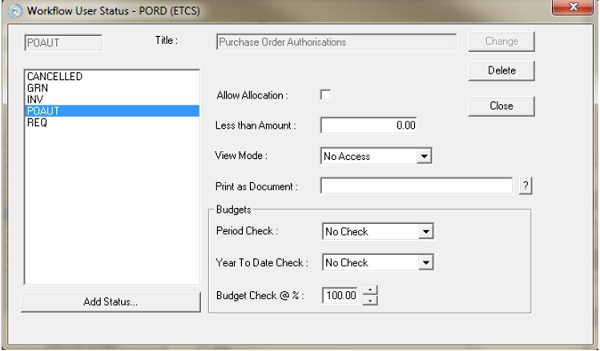
Listed are the statuses of the Document that the User Group can access. To add a new status, select Add Status.
-
Select the relevant Document statuses from the options available in the top box and select Add.
-
The Document Stages will be moved to the bottom box as per the example below. Click OK.
-
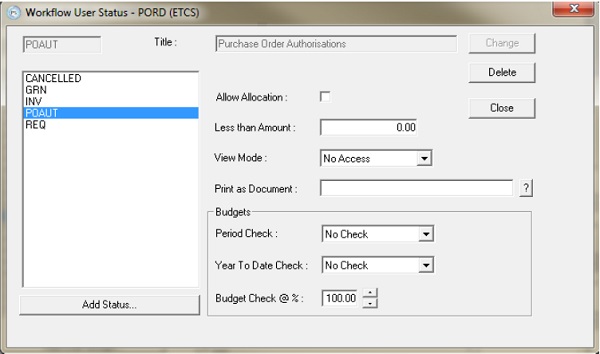
Select each Status Type in turn and complete each section following the guidance below.
-
Once changes are complete select Change and repeat these actions for all other Document statuses.
Document status Guidance
- Allow Allocation – allows a User Group to move a Document between Workflow statuses.
- Less than Amount – if an amount is entered, this will only allow the User Group to perform an action below the amount stated. NB - 0.00 relates to unlimited
- View Mode – refers to what actions the User Group can perform at that Document status.
- No Access – The User Group cannot perform the action.
- View Only – The User Group will only see the Documents and cannot create or amend them.
- Amend – The User Group is able to change the Document.
- Budgets – A budget check can be added if required from the drop down boxes.
- Period Check – will check the current period Budget against the current period spent (Check will warn a Budget Holder if an order will take them over budget.
- Year to Date Check – will check the cumulative budget from Period 1 to the current Period against all spend to date for the year.
- Budget Check @ % - Means the check will work against the stated percentage of then budget.“Check” means the system will check against the Budget and inform the User that they will be going over the Budget, but will still allow them to post.NB - If no budget is entered in the system, orders can still be raised provided the Enforce option is not used.
Recommended settings for Workflow
- Enforce will not allow an order to be posted, if doing so will take the User over Budget).
- No Check means there is no Budget check.
|
Document Type |
Initial Status needs to be... |
Statuses Req’d |
Allow allocation? |
View Mode |
|
Requisitions (REQ) Optional |
Requisition Raised (REQ) It is possible that, for a User Group, a REQ document can be automatically authorised as soon as it is posted. In order for this to happen, change the Initial Status to REQAUT. |
REQ |
Yes |
Amend |
|
REQAUT |
Yes |
Amend |
||
|
POREQ |
No |
View Only |
||
|
POAUT |
No |
View Only |
||
|
GRN |
No |
View Only |
||
|
INV |
No |
View Only |
||
|
CANCELLED |
Yes / No* |
Amend / View Only ** |
||
|
COMPLETE |
Yes / No* |
Amend / View Only ** |
||
|
Purchase Order (PORD) |
Purchase Order Requisitions (POREQ) It is possible that, for a User Group, a PORD Document can be automatically authorised as soon as it is posted. In order for this to happen, change the Initial Status to POAUT |
POREQ |
Yes |
Amend |
|
POAUT |
Yes |
Amend |
||
|
GRN |
No |
View Only |
||
|
INV |
No |
View Only |
||
|
CANCELLED |
Yes / No* |
Amend / View Only ** |
||
|
COMPLETE |
Yes / No* |
Amend / View Only ** |
||
|
Goods Received Note (GRN) |
Goods Received (GRN) |
GRN |
Yes |
Amend |
|
INV |
No |
View Only |
||
|
CANCELLED |
Yes / No* |
Amend / View Only ** |
||
|
COMPLETE |
Yes / No* |
Amend / View Only ** |
||
|
Invoice (INV) |
Purchase Invoice (INV) |
INV |
Yes |
Amend |
* The Allow Allocation box should always be ticked unless the User Group is not allowed to cancel the Document.
** If Financial Regulations state that once a Document is cancelled, it should remain cancelled, the option should be set to View Only. Allowing User Groups to Amend means that a cancelled Document can be reverted back to another status.