Approvers cannot open documents from the email link
The graphics used in this topic are for MyPortal. However, the same processes should be followed if you are using IRIS Financials Purchasing.
If a user receives an email to approver a purchase order or requisition but can't see the document, it means they have insufficient security access.
Locating the approvers Usergroup
Security is applied at user group level, rather than against an individual user. In order to give a user access to something will also give any other users in the same group the same access.
-
Log into IRIS Financials as CUSTADMIN or PSFADMIN and go to Admin > Administrator.
-
Log in using CUSTADMIN or PSFADMIN. You may need to ask your organisation's system administrator to do this.
-
Select + next to the PS Financials folder, then right-click on User Groups and enter the approver's user name (for example, JSMITH).
Alternatively, expand the Users folder to see the user groups, then select + next to each group to see the users within it.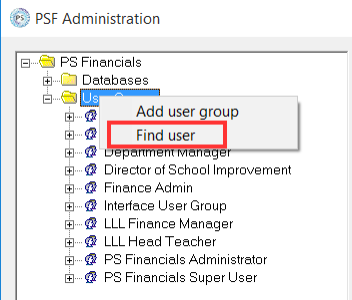
-
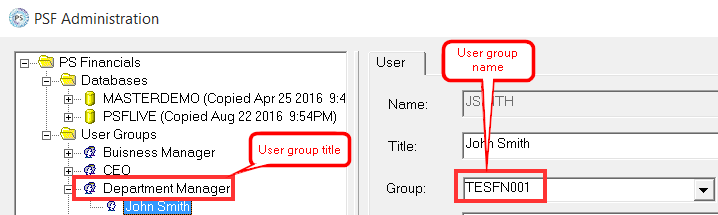
Make a note of the User group and Title as you will need these to check the security access.
-
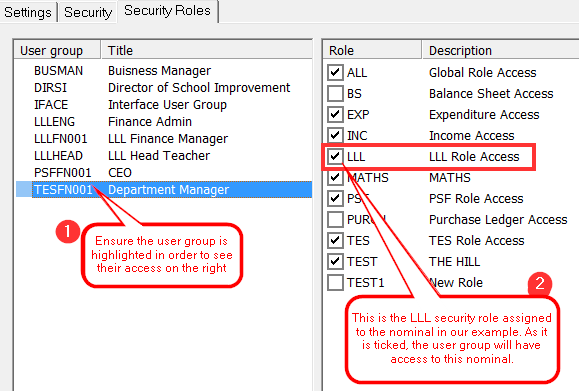
Expand Databases and highlight the applicable database (typically PSFLIVE), then select Security Roles.
-
Select the user's user group. This displays the security roles the selected group has access to. You will need to refer back to this screen throughout the remainder of this topic, so just leave it minimised on the screen.

Purchase order nominal security
-
Log in to IRIS Financials Purchasing or MyPortal and make a note of the Nominal on the purchase order detail line (there may be mulitple lines to check).
-
To check the security of the nominal, log in to IRIS Financials as CUSTADMIN or PSFADMIN.
-
Go to Masters > Nominals, then select the required nominal.
-
Select the Security tab. The approver needs access to the View role .
-
Make a note of the View security role.
Other nominals may have this same security role against them. Giving access to this role may open up other areas of the system for anyone who is given access to this role.
-
Open Financials Administrator and check to see if the users user group has the security role in step 4 selected. Select the box if required, then select Apply.
-
Ask the user to select the approval link again to see if they can now see the document. If they cannot see the document, you will need to continue working through this topic as they will need access to other nominals or accounts on the purchase order.
Purchase order ledger security
Most nominals are linked to ledgers and accounts which defines which department the spend is allocated to. Ledgers and Accounts can also have security against them which will need to be checked. This section will explain how to check the security on a ledger.
-
Make a note of the detail line nominal(s) used on the purchase order. To do this, open the document in MyPortal or IRIS Financials Purchasing. Within the document, the nominal can be found on the detail line of the purchase order (there may be mulitple lines to check).
-
Log into IRIS Financials and go to Masters > and search for the nominal. Make a note of the Ledger that is displayed against the nominal. In our example, it is LLL_COSTCTR.
-
Go to Masters > Ledgers and find the ledger that the nominal is linked to (LLL_COSTCTR in our example).
-
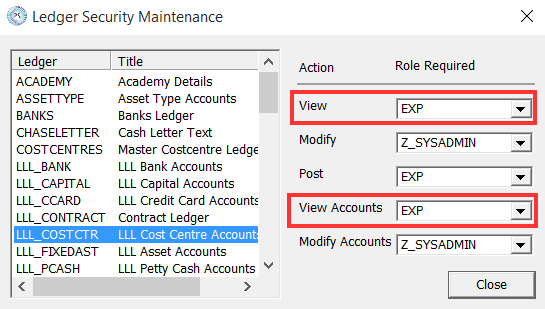
Select the ledger, then select Security. Make a note of the View and View Accounts roles.
The View role is required to see the ledger itself and the View Accounts role is required to view the accounts that are on the ledger.In our example the security role required is 'EXP'.
-
Open Financials Administrator and check to see if the users user group has the security role in step 4 selected. Select the box if required in order to give the user group access to the security role, then select Apply.
-
Ask the user to select the approval link again to see if they can now see the document. If they cannot see the document, you will need to continue working through this topic as they will need access to other nominals or accounts on the purchase order.
Purchase order account security
Accounts are the departments that spend is allocated against. These are contained within ledgers which are linked to nominals. These accounts can have security on them which this section will explain how to check.
-
Make a note of the detail line account(s) used on the purchase order. To do this, open the document in MyPortal or IRIS Financials Purchasing. Within the document, the account can be found on the detail line of the purchase order (there may be mulitple lines to check).
-
Make a note of the detail line nominal(s) used on the purchase order. To do this, open the document in MyPortal or IRIS Financials Purchasing. Within the document, the nominal can be found on the detail line of the purchase order (there may be mulitple lines to check).
-
Log into IRIS Financials and go to Masters > and search for the nominal. Make a note of the Ledger that is displayed against the nominal. In our example, it is LLL_COSTCTR.
-
Go to Masters > Accounts, then double-click on the cost centre ledger the account is linked to (LLL_COSTCTR in our example).
-
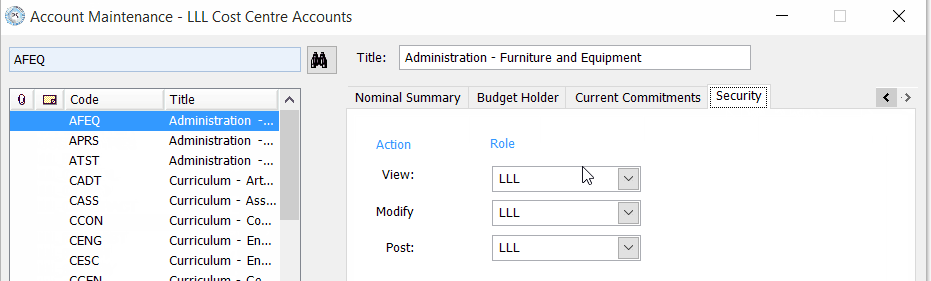
Search for and highlight the account, then select the Security tab. Make a note of the View security role.
-
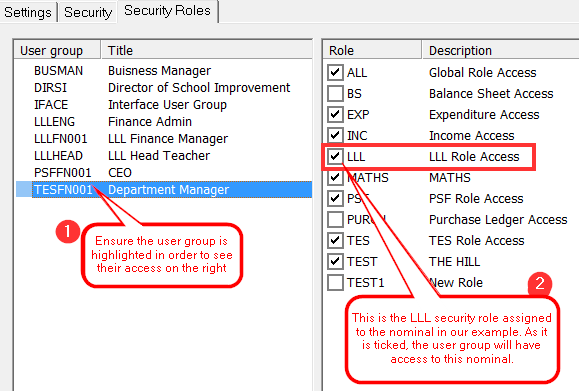
Open Financials Administrator and check to see if the users user group has the security role in step 4 selected. Select the box if required in order to give the user group access to the security role, then select Apply.
-
Ask the user to select the approval link again to see if they can now see the document. If they cannot see the document, you will need to continue working through this topic as they will need access to other nominals or accounts on the purchase order.
Purchase ledger nominal security
Purchase orders are posted against a supplier. Each supplier is on the purchase ledger which is linked to the Purchase Ledger Control nominal.
The purchase ledger control nominal can be found on the left hand side of the purchase order screen. Make a note of this nominal.
IRIS Financials Purchasing users
You will need to use the last three letters in the supplier code to determine the location of the purchase ledger control nominal. If your organisation operates a single balance sheet, you will need to go to Masters > Nominals and search for the purchase control nominal.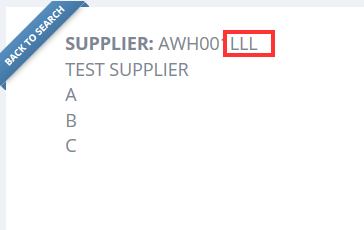
-
Open IRIS Financials, then go to Masters > Nominals and search for the purchase ledger control nominal noted in step 1.
-
Select the Nominal, then select the Security tab. Make a note of the View role.
-
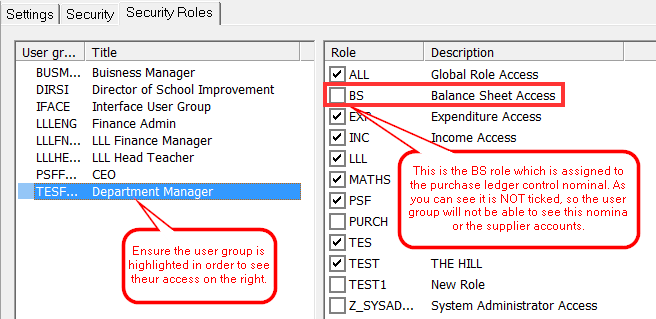
Open Financials Administrator and check to see if the users user group has the security role in step 3 selected. Select the box if required in order to give the user group access to the security role, then select Apply.
-
Ask the user to select the approval link again to see if they can now see the document. If they cannot see the document, you will need to continue working through this topic as they will need access to other nominals or accounts on the purchase order.
Purchase ledger security
Suppliers are contained in the Purchase ledger. The Purchase ledger may have security roles against it which you will need to check.
-
Open IRIS Financials and go to Masters > Ledgers, then select the PURCHASE ledger.
If you have multiple purchase ledgers, select the ledger relevant to the location that placed the order.
-
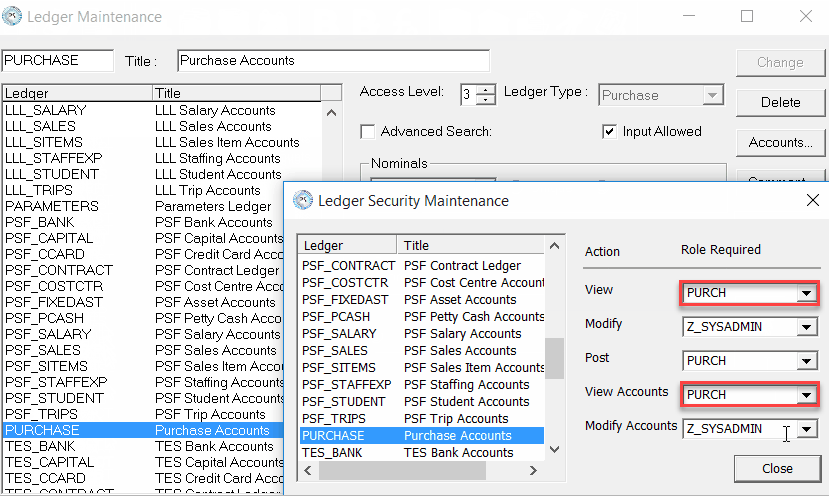
Select the Security tab and make a note of the View and View Accounts roles. In our example, the role in View and View Accounts is 'PURCH'.
-
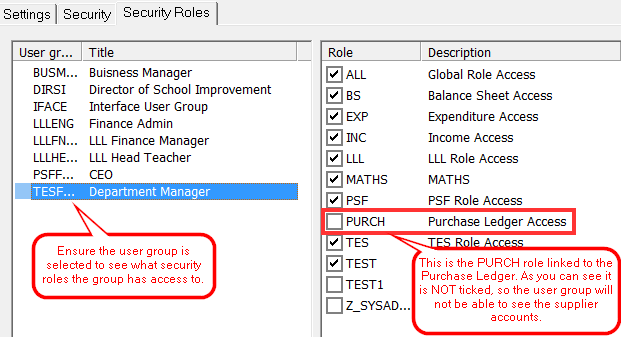
Open Financials Administrator and check to see if the users user group has the security role in step 2 selected. Select the box if required in order to give the user group access to the security role, then select Apply.
-
Ask the user to select the approval link again to see if they can now see the document. If they cannot see the document, you will need to continue working through this topic as they will need access to other nominals or accounts on the purchase order.
Purchase order document
There is also security on the different documents types in MyPortal and IRIS Financials Purchasing. User groups may not have access to certain document types which would stop them from being able to authorise them. This is controlled within Distribution.
Refer to Display the purchase order icon in IRIS Financials Purchasing for more information.
Related
Check security for access to and authorisation of non-order documents