Mark a student as deceased
To mark a student as deceased in Ed:gen you must work through the following processes in the Pupil Manager module:
- Set the student status to 'Archived/Left'.
- Set the reason for leaving.
- Update student contacts.
- Unlink other students.
Set the student status
- In the Pupil Manager module, select the Current Students tab.
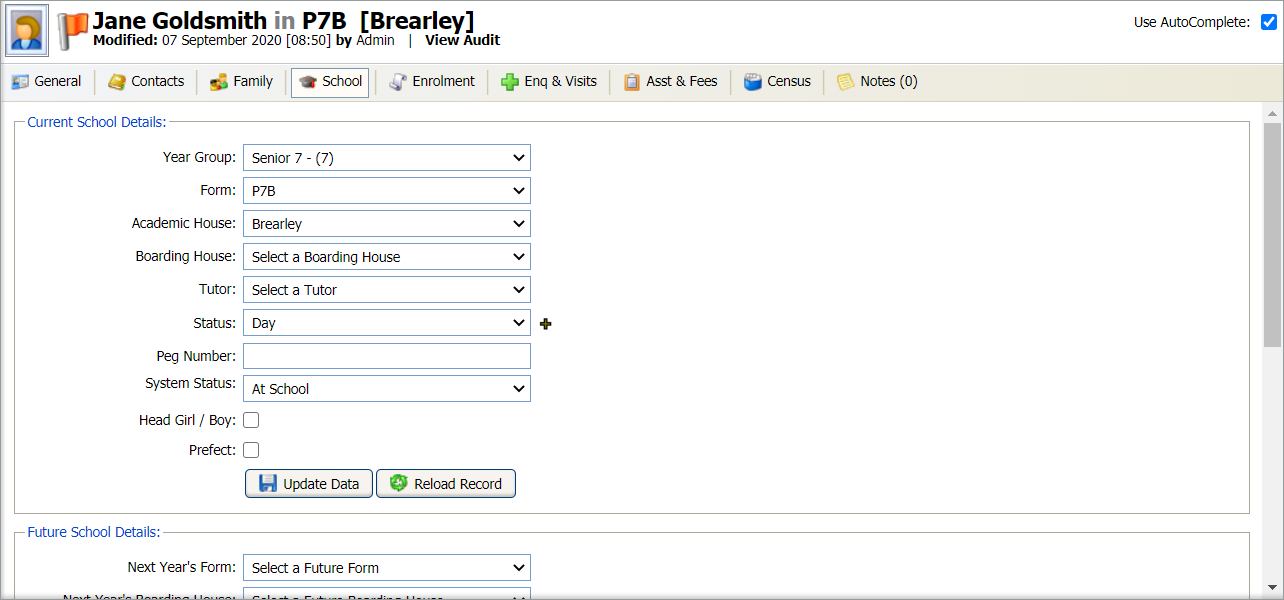
- Search and select a student record to work with and select the School tab:
- Go to the Current School Details section and the System Status field.
- Select 'Archived/Left' from the drop-down list.
- Click Update Data for the section.
- Now set the reason for leaving.
Set the reason for leaving
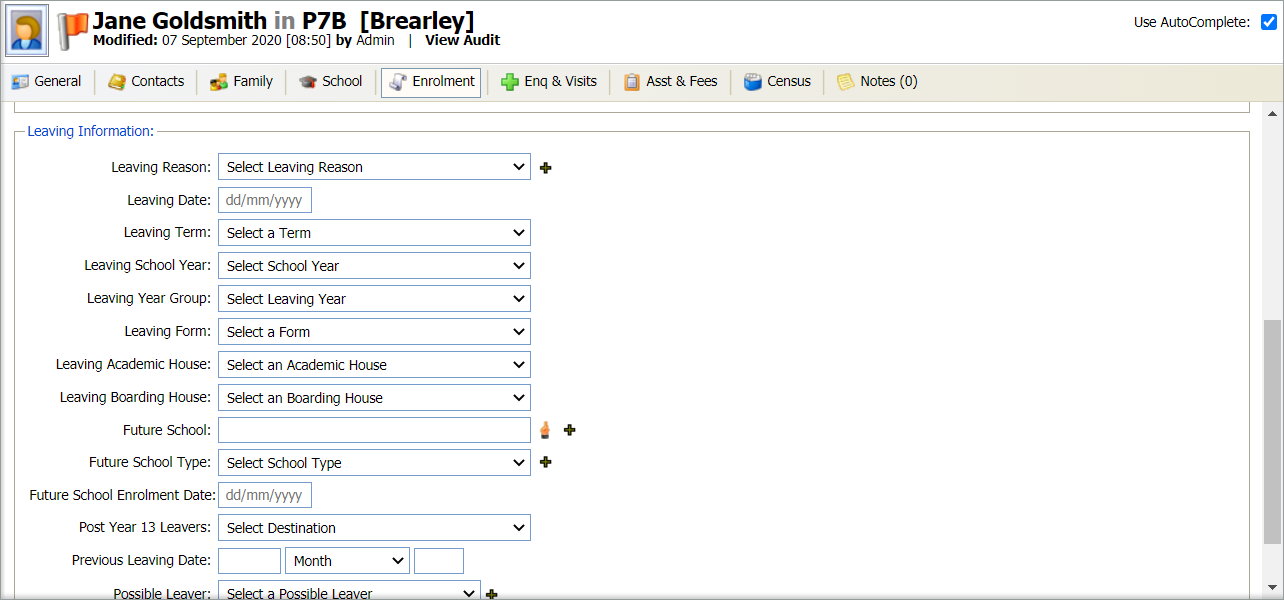
- Select the Enrolment tab:
- Go to the Leaving Information section and the Leaving Reason field.
- Select 'Death' from the drop-down list.
- Enter additional leaving details, such as Leaving Date, as required.
- Click Update Data for the section.
- Now update student contacts.
Update student contacts
Prevent any bulk emails and correspondence being sent to contacts.
- Select the Contacts tab.
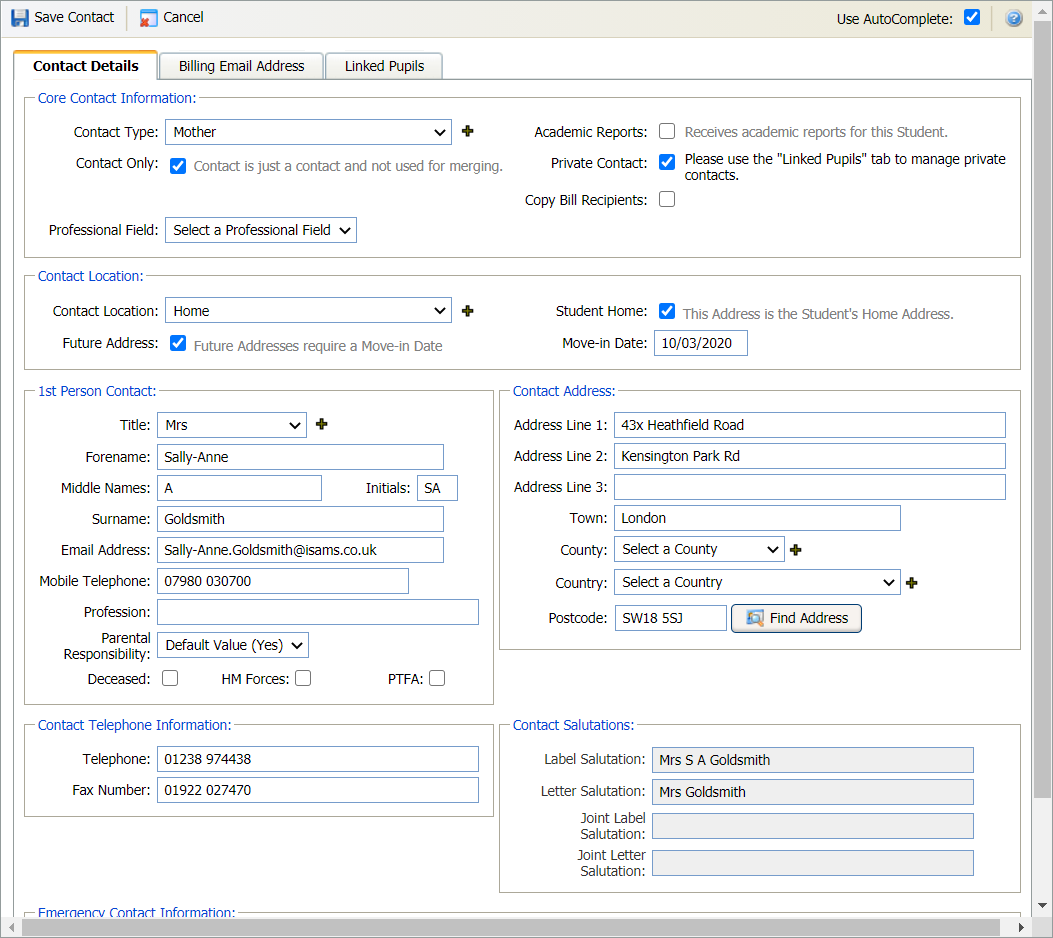
- Scroll to the Current Pupil Contacts section and select the edit icon for each contact listed. The Student Contacts window is displayed:
- In the Core Contact Information section, check the Contact Only box.
- Now unlink any other students linked to the deceased student.
Unlink other students
If a student contact has other students still at the school, you will need to unlink the contacts from the deceased student. This prevents correspondence being sent for the deceased student while still sending letters and emails for the current students.
- In the Contact Details tab, check the Private Contact box:
- Click Save Contact.
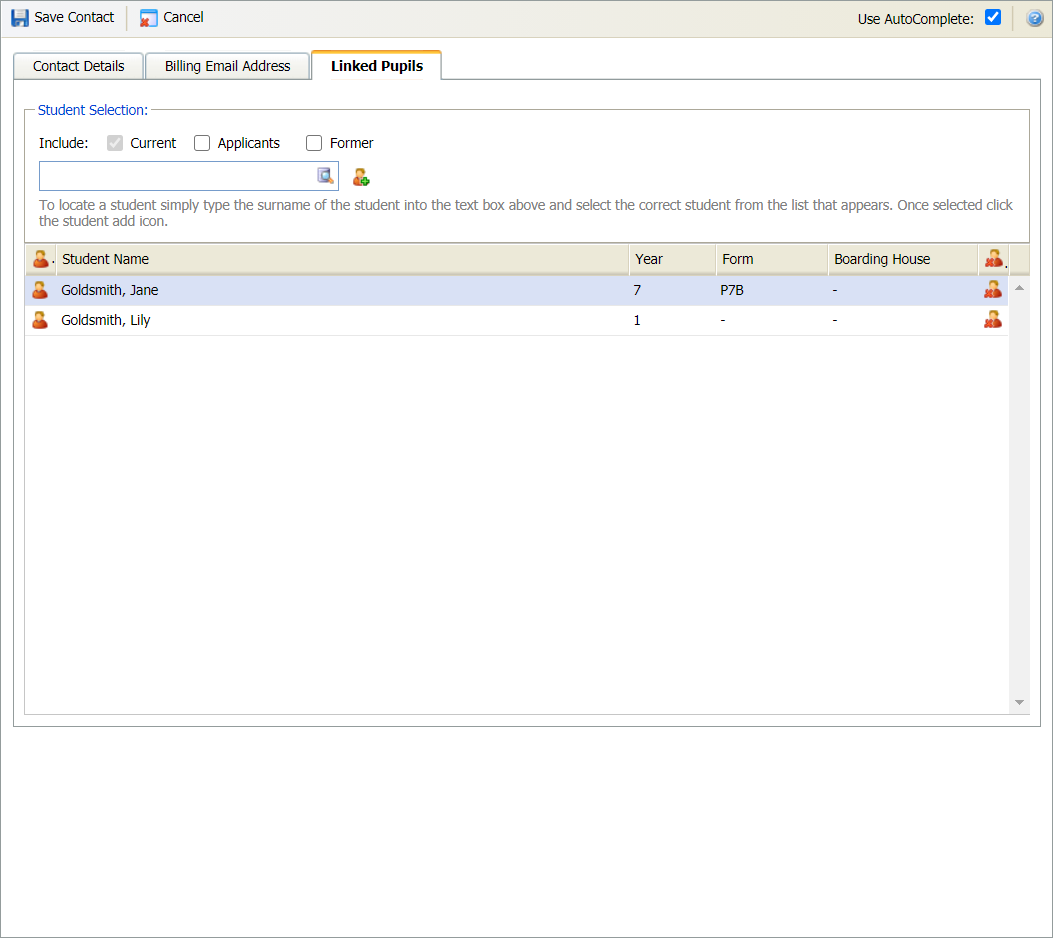
- Open the Student Contacts window again and select the Linked Pupils tab:
- Select the student that you want to unlink and select the delete icon.
- Click Save Contact.