Add and Assign Warnings
Adding a warning:
In FasTrak Admin there is a feature to add warnings to user's accounts that are shown when making transactions on the tills. These are commonly used for allergies but can be customised to be used for any other reason.
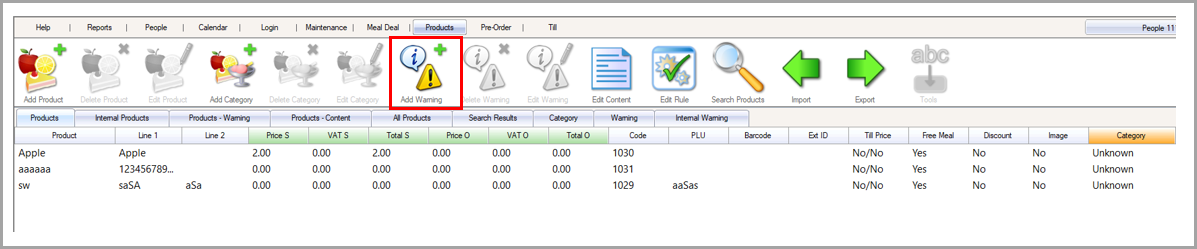
To add warnings onto FasTrak Admin you must first go to the Products page and find the Add Warning button as shown below:
Once you have done this you will see the following menu:
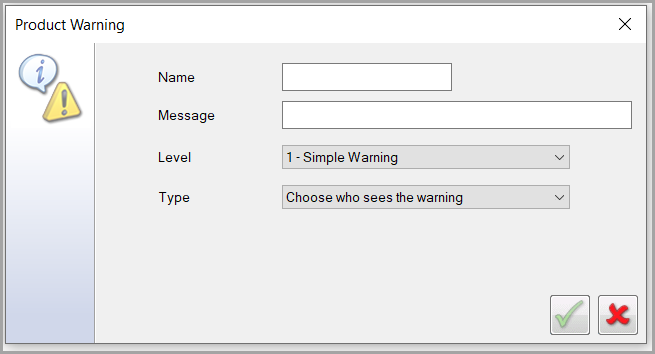
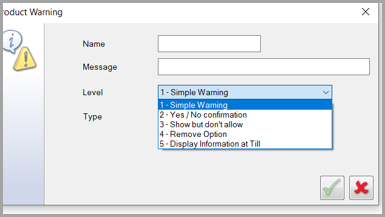
To create a warning you must first give the warning a name and a message that can be setup to show on the till screen. The next box shows the warning level. This goes from level 1 - level 5. As the levels go up the warning will require more action and more information will be shown on the till about the warning for the user. This is shown below:
To make sure products with allergy warnings are never displayed for students and staff members with the allergens assigned, we recommend setting the Level for all product warnings to 4 - Remove Option. To check and update the Level set for existing product warnings, edit the product.
The next box allows you to choose the type of warning. This option either sets the warning up so that it is active for all users or you can set this up to only be active for individual users.
Assigning a warning:
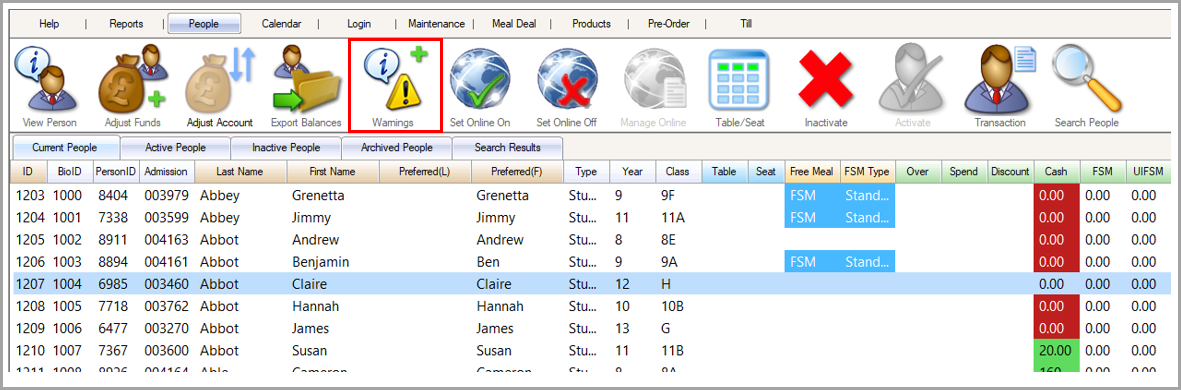
To assign warnings to individual accounts you must go to the People section and click on the Warnings button as shown below:
Once you have clicked on this the warnings menu will appear as shown below:
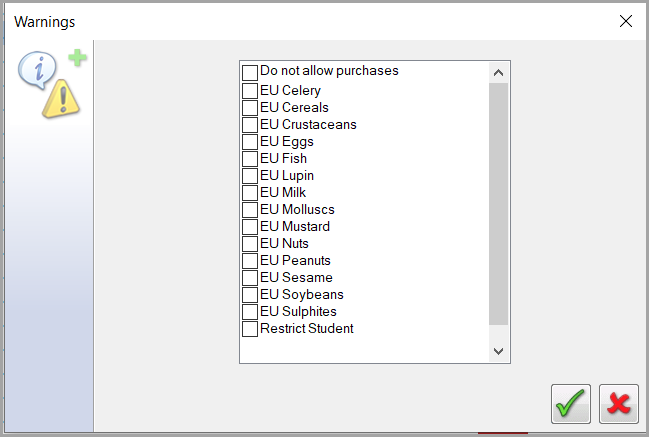
To assign warnings to the user's account you must tick the box next to the warning. Once done you need to click the green tick at the bottom right of the menu and this will assign the warning to the user's account. Most allergy warnings are already created as default in FasTrak Admin.