 |
 |
|
|
Select Edit followed by Capital Allowances and then A - Maintain Assets.
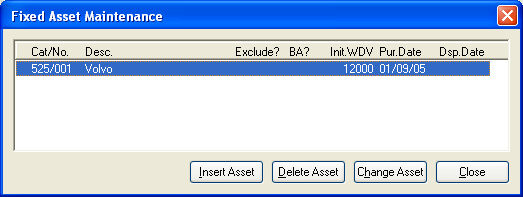
You will see one asset registered on the screen. (This was imported when you used the Extract / Replace routine in Accounts Production.)
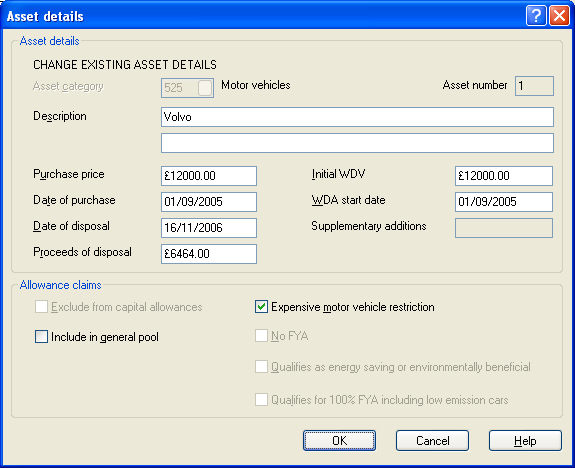
Once the screen is complete click OK.
The trader has purchased a new motor vehicle in the year. To register this asset select Insert Asset and complete the data screen as follows:
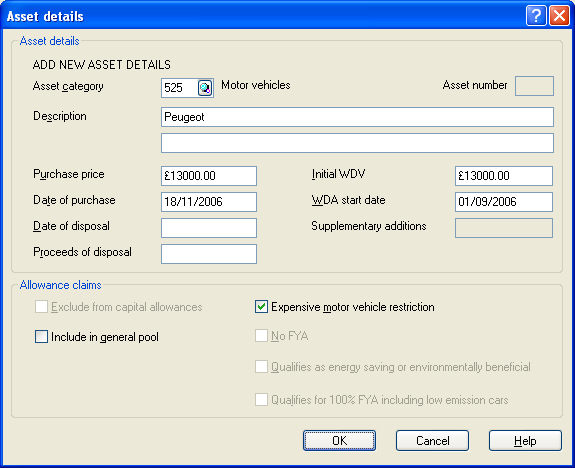
Once the screen is complete select OK. You will see both assets listed on the screen.
Select Close to go back to the Capital Allowances menu.
Select B - Re-calculate. This calculates the allowances required for the current year on non-pooled assets. When you are told the re-calculation is complete click OK.
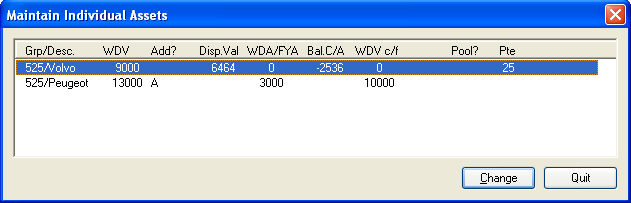
The private use for the Volvo is already entered as it was brought forward from last year when the Re-calculate individual assets option was run.
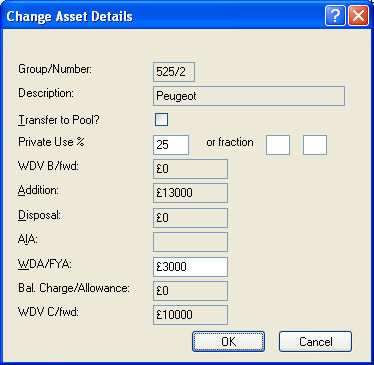
To enter the private use for the new car highlight the Peugeot and click Change.
In the Private Use field enter 25 and then click OK.
Click Quit to return to the Capital Allowances menu.
The final step in this option is to calculate the allowances for the asset pools. The asset pools have already been registered for you to bring forward so click D - Re-calculate to calculate the allowances on the pooled assets.
There are no additions to or disposals from the pool so you will not need to use the E - Maintain Pool option.
Select Close to return to the main Business Tax screen.