Manage leave/PTO accruals
Practice Admin Managers Partners
At the end of each leave year, it will be necessary to create leave accruals for those staff members who have not taken their full leave allowance. This is typically carried out by department.
- Select Admin > Task Pad from the menu.
- From the task pad, click Create Leave Accruals.
- From the Staff Leave Maintenance Portfolio, use the lists at the top of the page to filter the required staff.
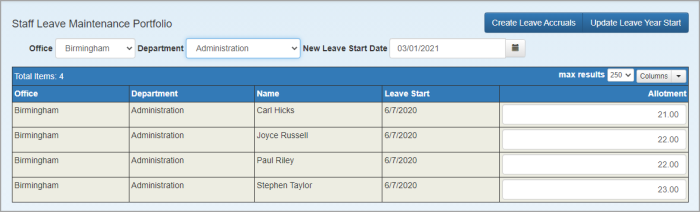
- Make sure that the New Leave Start Date is correct, i.e. the start of your holiday year.
- Click Update Leave Year Start, then click Yes when prompted to confirm. This process takes any outstanding leave for each staff member and creates a roll forward balance by adding the balance to their leave entitlement.
- You then need to review and make any required changes in the Allotment column, perhaps because someone has been promoted or has reduced their hours which impacts their entitlement.
- Once the required changes have been made, click Create Leave Accruals. Any changes made will update the leave entitlement for the specific staff member(s) on the TOIL Details tab.