SSP tab
All sickness already entered via the Absence module or the SSP section in Employee Files is automatically taken into the pay run when it is opened and will display on this screen. You may add additional sickness periods on this screen and it will be included in the payrun.
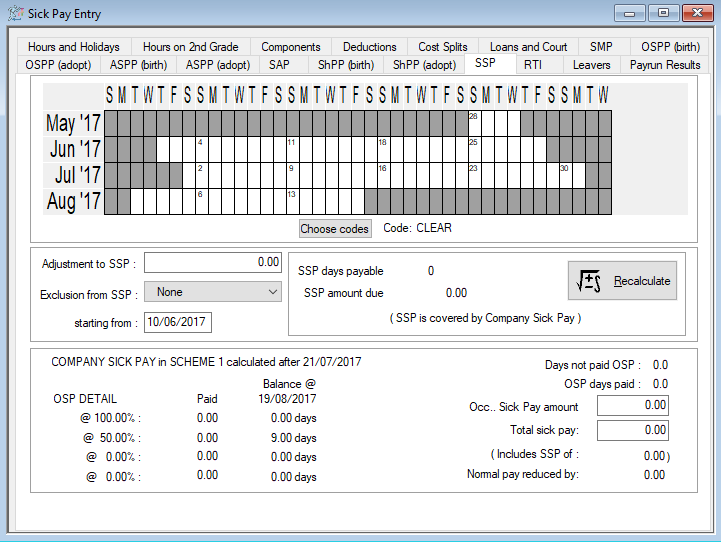
IRIS Payrite uses the SSP Qualifying Days pattern held in the base data to calculate SSP paid days.
Adding a Sickness Period
Please note that you cannot add a sick period that surpasses the SSP cut off date defined when the payrun was opened.
-
Click on the Payrun icon.
-
Go to the Payrun menu and select Amend Payrun followed by Full Data Entry.
-
Click OK at the payrun reference screen, and go to the SSP tab.
-
Select the employee you wish to add sickness to using the navigation bar.

-
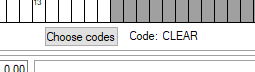
Click the Choose Codes button.
-
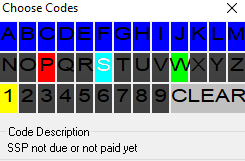
You can see the code currently in use to the right of this button. From the box of code letters, choose S by clicking on it.
-
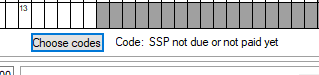
Upon returning to the main screen, you will see that the code in use has changed.
-
Using the calendar, click on the date the sick period is starting and, holding the mouse button down, drag the cursor along the calendar until you reach the end of the sick period.

-
You will see the period outlined in blue. Once you release the mouse button, this period will turn light-blue.
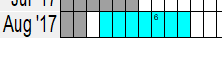
-
Repeat for any other sick periods that need to be entered for this employee.
-
Click Recalculate. IRIS Payrite will now calculate SSP, you can seethe result to the left of the recalculate button.
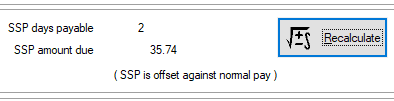
-
You will also see the calculated SSP days reflected in the calendar on this screen, the days will be light green for waiting days and yellow for paid SSP days.
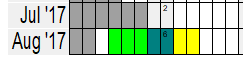
-
Click Save.
-
Repeat from step 4 for any more employees that have sick periods
Remove a sickness period
If you have entered a sick period in error, you can clear this to remove the SSP values from the payrun.
-
Click on the Payrun icon.
-
Go to the Payrun menu and select Amend Payrun followed by Full Data Entry.
-
Click OK at the payrun reference screen, and go to the SSP tab.
-
Select the employee you wish to add sickness to using the navigation bar.
-
Click the Choose Codes button.
-
You can see the code currently in use to the right of this button. Select Clear from the codes list.

-
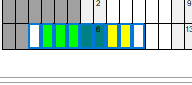
Using the calendar, click on the first date of the sick period and, holding the mouse button down, drag the cursor along the calendar until you reach the end of the sick period.
-
The days will be outlined in blue. Upon releasing the mouse button, the sick period will be cleared. Click Save.
Manually adjust SSP
As with the statutory pay screens, a manual SSP adjustment filed is available.
-
Click on the Payrun icon.
-
Go to the Payrun menu and select Amend Payrun followed by Full Data Entry.
-
Click OK at the payrun reference screen, and go to the SSP tab.
-
Select the employee you wish to amend values for to using the navigation bar.
-
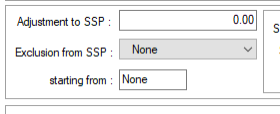
On the left of the screen you will see the Adjustment to SSP field.
-
Enter the amount you are adjusting SSP in this field, for example if you want to adjust the value down by £50, you would enter -50 here.
-
Click Recalculate to apply the change.

-
Click Save.