Print single payslips
This option allows you to select the individuals you wish to print payslips for. Employees are selected using the navigation bar.
-
Click on the Payrun icon.
-
Go to the Reports menu and select Single Payslips.
-
Click OK at the currency warning.
-
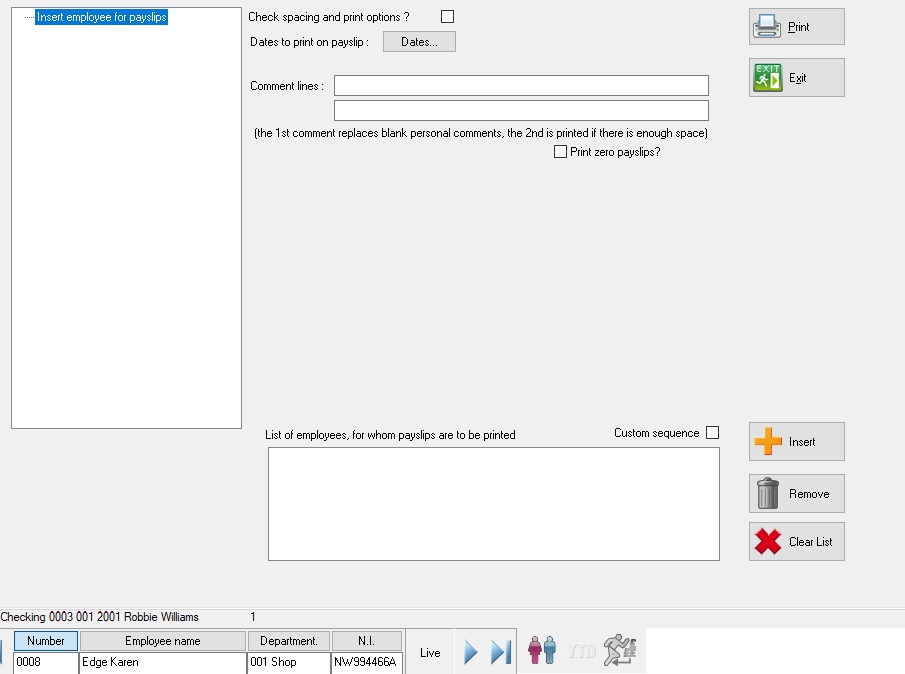
The next screen is similar to the All Payslips by Type screen but there is an employee select section at the bottom.
-
We can use this to add employees to the print. Using the navigation bar, select the employee you with to print the payslip for.
-
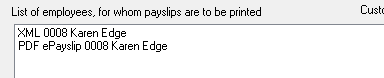
Click Insert to add the employee to the print list. You can see the print list to the left of the insert button. If more than one payslip type is assigned to the employee, both payslip types will be shown.
-
If you do not wish to print both types, you can remove the type that is not required by clicking the Remove button. Add any further employees to the print by repeating from step.
-
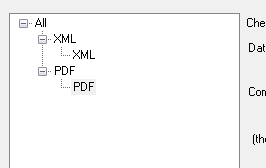
You can see the payslip types assigned to the employees selected in the top left of the screen.
-
If two different types of printed payslip appear in the box (e.g.Z-fold and V-fold), then it is recommended that employees for each type are processed separately to avoid confusion when loading stationery).
-
If you want to have the option to change the printing options every time the payslips are printed, check the Check Spacing and Print Options box at the top of the screen.
-
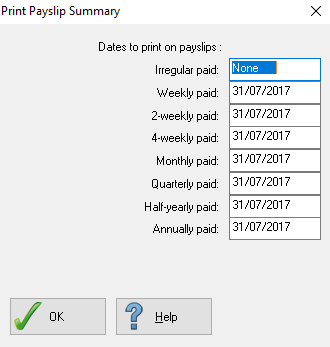
The dates to be printed on the payslips are defined when you open the payrun, however if you need to select a different date, click on the Dates button.
-
From the pop-up screen, locate the pay frequency you are printing payslips for and amend the date accordingly. To print comments on the payslip, two comment lines are provided.
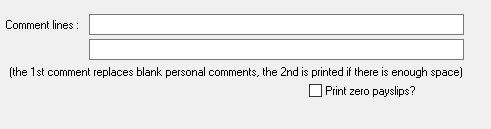
The first line will be printed for all employees that do not have a personal comment defined in their employee record, the second comment line will only be printed if there is sufficient room on the payslip.
By default, payslips with a zero net pay value will be excluded, to print payslips which have a zero net pay, check the Print Zero Payslips box.
-
If you are printing paper payslips, ensure the stationary is loaded. Click Print to generate / print the selected payslips.
-
Click Exit to leave the payslip printing screen.