Migrating existing My ePay Window users to IRIS Identity
This guide provides a clear, step-by-step walkthrough for logging into My ePay Window and activating your IRIS account. It covers everything from the initial login process to setting up Multi-Factor Authentication (MFA), accessing your dashboard, and logging out securely. When migrating from a legacy system, this guide ensures a smooth and secure experience while maintaining access to essential payroll applications.
Step-by-Step Login Process
1. Initial Login
- Go to My ePay Window Login Page.
-
Enter your current username and select Next.
2. Redirect to Old Login Page
-
You will be redirected to the old login page.
-
Click Login again. Your credentials will be pre-filled.
3. Register Personal Email Address
-
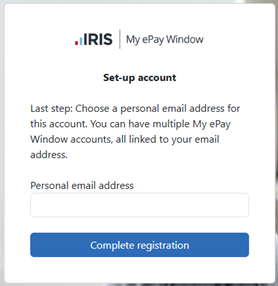
Enter your email address to ensure employee’s continued access even after leaving your company we recommend using a personal email address.
-
Click Complete Registration.
4. Email Confirmation
-
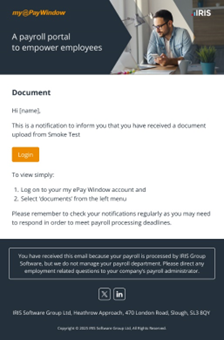
Look for an email from donotreply@myepaywindow.com.
-
If not found, check your junk/spam folder.
-
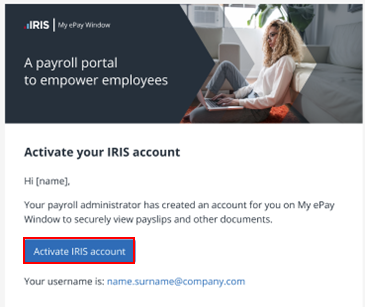
Click the link in the email to activate your IRIS account.
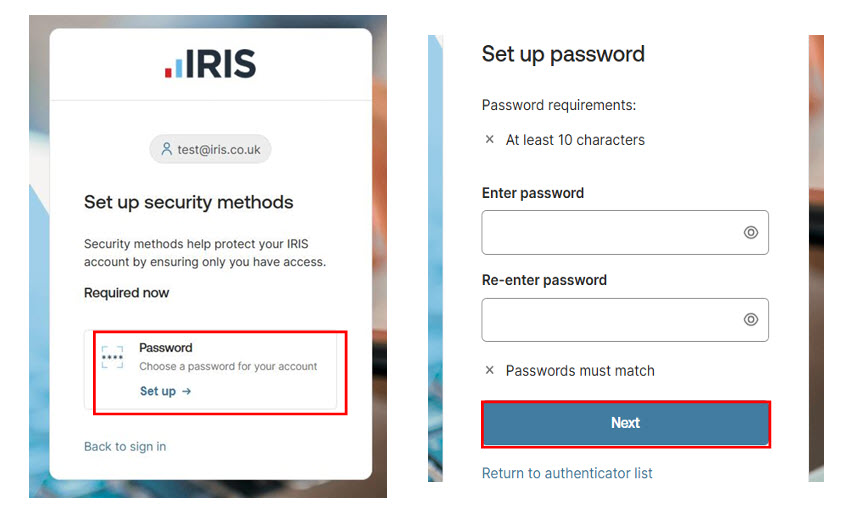
5. Activate IRIS Identity Account
-
Click the activation link.
-
Set your password and click Next.
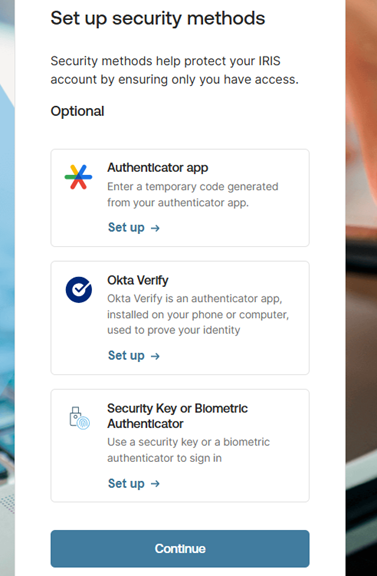
6. Multi-Factor Authentication (MFA) Setup
-
You’ll be prompted to set up MFA.
-
This is optional unless mandated by your employer or bureau.
-
Choose one of the available MFA options if required.
-
Click Continue.
7. Return to My ePay Window
-
You’ll be redirected to your employer dashboard.

8. Logging Out
-
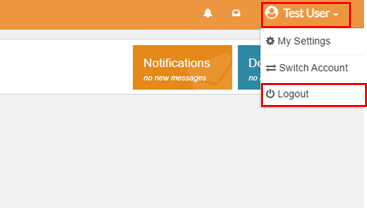
Click Logout from the dashboard.
-
You’ll be returned to the login page.