Client De-duplication for PTP Customers Using Tax and Accounts Production
This page explains how PTP customers using both a Tax product and PTP Accounts Production can avoid creating duplicate client records when migrating or syncing data into IRIS Elements.
Why de-duplication matters
PTP Accounts Production and PTP Tax usually contain overlapping client records. For example, director and partner records in PTP Accounts Production. IRIS Elements uses a single unified client record, so it is important that duplicate client records are matched to prevent duplicates in Elements.
How duplicate clients are resolved
IRIS Elements auto matches client records during data migration. Where client records are detected in Elements, the migrating client data passes through a matching service and matches clients together using strict, exact-match criteria based on the following:
-
Company registration number (incorporated businesses)
-
Charity registration number (registered charities)
-
UTR (businesses and individuals)
-
National Insurance Number (individuals)
-
Business name with VAT number, business name with address and postcode (sole trades)
-
Individual names with address details (individuals where the UTR is not present).
For example: XYZ Ltd has an Accounts Production record which was created in Elements by the synchronization of client records from PTP Accounts Production. You also produce and file the corporation tax return for XYZ Ltd. As the company registration number is present in both the Accounts Production record and the Tax record, the Elements matching service detects that the 2 records are the same and automatically matches them together.
Prepare client data for an exact match
Elements cannot auto-match clients where the criteria for matching is not present or differs between records. To ensure an exact match, add the UTR to individuals and partnerships in Accounts Production where you act for the individual or partnership in a tax capacity. Alternatively, you can review and confirm or amend matches during the tax migration process.
Matching using ‘Fuzzy’ logic
Where an exact match is not detected, the matching service can suggest a match using ‘fuzzy’ logic. In this case, the migrating data did not meet the strict conditions for an exact match, but the differences between the 2 records are relatively small, e.g. a slightly different spelling of a name. Where this scenario is detected, Elements will present a list of clients, some will likely have suggested matches, others will have no match. You can correct, amend and confirm matches in this screen.
For example: Ms A Green is present in Elements; she is a director of a limited company and her client record was created in Elements by the syncronisation of records from PTP Accounts Production where the record consists of a name only (UTR and address not present). You act for the client in a Tax capacity, and so she has a record in your migrating Tax data, where her name is stated as Mrs Anne Green. In this scenario, the 2 records cannot be automatically matched as they did not meet the strict matching criteria. Instead the migrating tax record is presented with a potential match, which can be confirmed if correct or amend if not.
Recommended order of migration
-
Sync PTP Accounts Production clients first.
-
Migrate PTP Tax data after Accounts Production client sync.
-
Migrate Accounts Production data.
What to do if duplicates occur
Identify which client record contains tax data, and which record is connected to a business that contains the accounts data. Delete the record that contains the tax data and migrate the tax record again, this time taking care to match to the existing record.
What to do if the Tax migration has been completed before the Accounts Production migration
Client records in Elements (created by the Tax migration) can be matched up to their corresponding records in PTP Accounts Production.
The Sync Control Panel in PTP Accounts Production is capable of auto-matching records based on the following criteria:
-
Limited companies and LLPs match on company registration number
-
Individuals match on UTR, NiNo or client ID
Connect PTP Accounts Production to your Elements account and open the Sync Control Panel (setup / Transfer client records to IRIS Elements). As the screen loads, your client records are loaded and made available for matching.
Matched client can be seen in the Elements Link column. To edit or establish a match, select the blue button in the Elements Link column on the row you wish to match. To correct an incorrect match select Un-match. To match a record, find the Elements record in the rows, select the record and then Match.
Working with ‘Fuzzy’ client matches
During the migration of Tax records, checks are made to see if client records already exist in Elements. If clients are already present, but Elements was unable to determine an exact match, a screen is presented to allow you to confirm or amend matching clients.
Select Tax clients for migration and start the migration process. Depending on the volume of data being migrated, the duplication check screen might take a few moments to display. Exact matches are auto-matched; approximate matches require user confirmation.
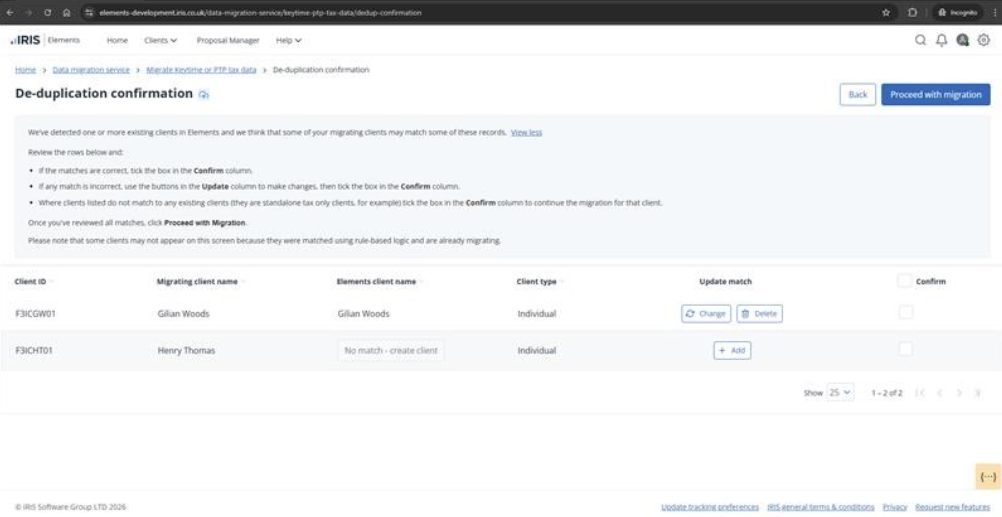
Check the migrating client ID and name in the first two columns and compare with the existing Elements client name in the third column. If you agree with the suggested match, tick the Confirm box.
If the suggested match is incorrect, and you know there is an alternative client already in Elements to match up to, select Change in the Update Match column and find the correct record and match them together. You can also use the Change button to check if there is an alternative match if you are unsure. When you are happy with your match, tick the Confirm box.
If the suggested match is incorrect, and you know there is no alternative record in Elements to match up to, select Delete in the Update Match column. This will remove the matched record and allow the migrating client to be created as a new record. You can also use the Change button to check if there is an alternative match if you are unsure. When you are happy with your amendment, tick Confirm.
If no match it found, you will be prompted to create a new client.
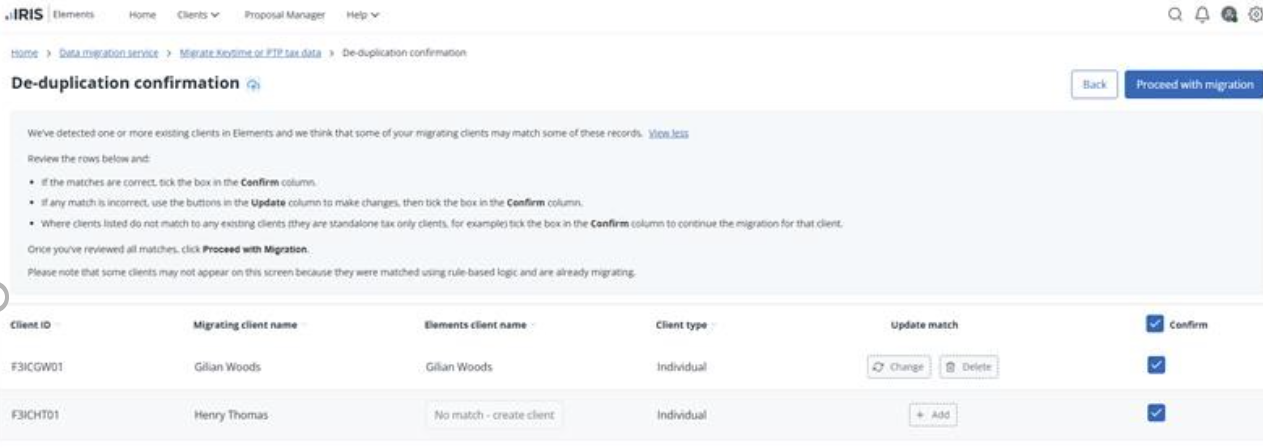
If this is correct, and you want to create this migrating client as a new record in Elements, tick the Confirm box. If this is incorrect or you want to check existing records and potentially match, select Add in the Update Match column.
Once all matches are resolved and you have ticked the Confirm button on each row, select Proceed with migration (top right). Note that any rows that are not confirmed (no tick in the Confirm box), the migration will be cancelled for that client. The data can still be migrated, any clients that were cancelled can be seen in the initial client list in the migration screen and be selected and another migration session can be initiated.