Add Website Pages
To add a new page to your organisation website:
-
Go to Website Area, then select
- Select New.
- Select a template, then select Choose Template.
- Select Untitled next to Page title:, then enter a name for the page.
-
Websites are displayed as one column, to display the page with more than one column, from Page Builder, select a Layouts option and drag it onto the page.
To change the column width, hover over the section, then select the Cog icon. Not all columns need content, they can be used to create space around other content.
-
From Page Builder, select and drag the section type onto the page.
To add a break between sections, add a Heading.
Use the dots icon on the outlined section to move the sections around on the page.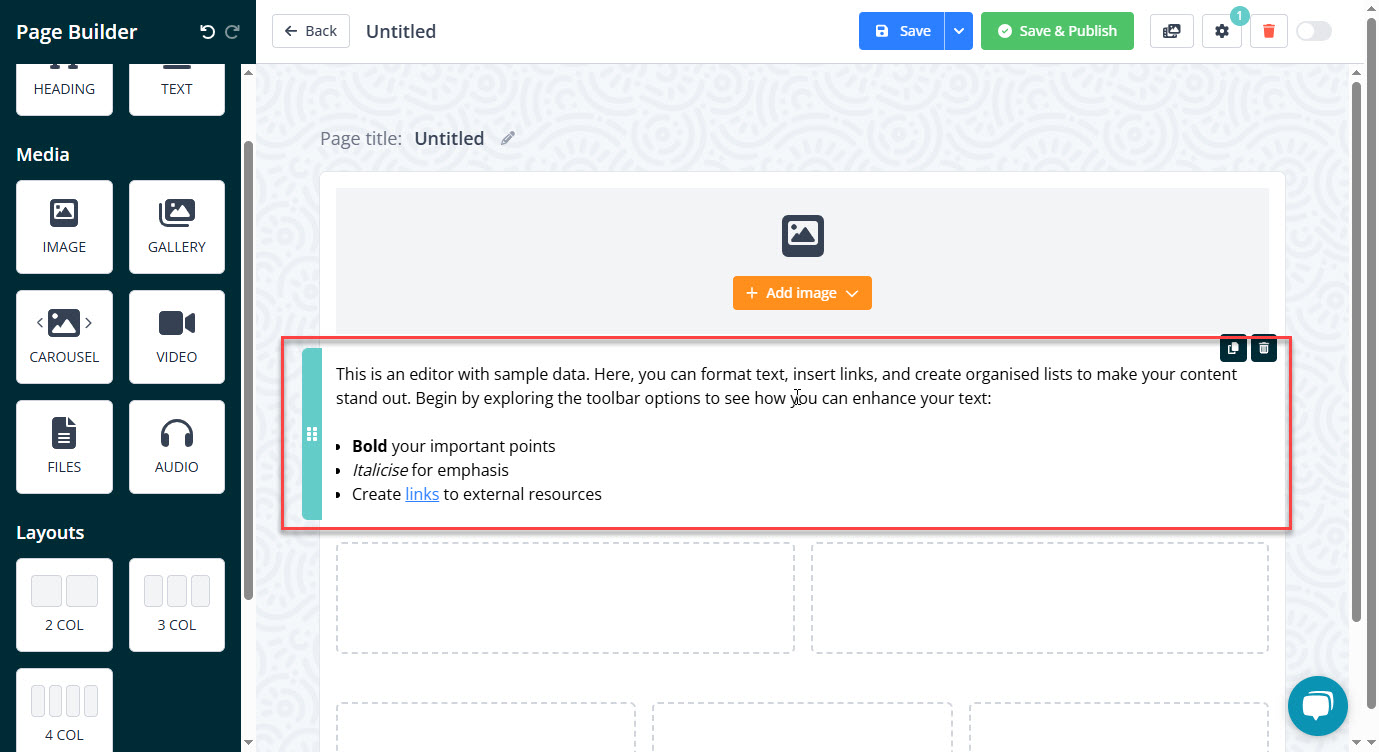
-
To set Additional Options, select the Cog icon.
- THE POSITION OF THIS PAGE — Select the menu section the page should be displayed in.
- PASSWORD — Set a password that is required to access the page.
- LINK DIRECTLY TO ANOTHER LOCATION (INCLUDE HTTP://) — To link the page to another website.
- TEACHERS ASSOCIATED WITH THIS CLASS — Assign the page to a teacher to manage.
- Choose from the range of options to show or hide the page for different types of user.
-
When the page is ready to be added to your website, select Save & Publish.
To keep the page as a draft and continue working on it later, select Save.