Add VAT periods using the period creation wizard
This guidance is only for IRIS Financials Version 7.0.2103 or earlier. If using version 7.0.2223 or later, go to Add VAT periods using the populate tax year wizard.
CUSTADMIN access only
There may be occasions when you need to create extra VAT periods/quarters in IRIS Financials. The system sets up VAT periods monthly or quarterly as standard. Typically, you create a single VAT period manually, and create several VAT periods using the Period Creation wizard. This topic describes how to create VAT periods using the wizard. If you prefer to create periods manually, see Manually Adding VAT Periods.
- Go to Maintenance, then select Accounts from the menu.
- Double-select to select the VAT ledger in the Select a ledger dialog.
- The Account Maintenance dialog opens labelled according to the selected ledger. Select ADD NEW, then select POPULATE TAX YEAR.
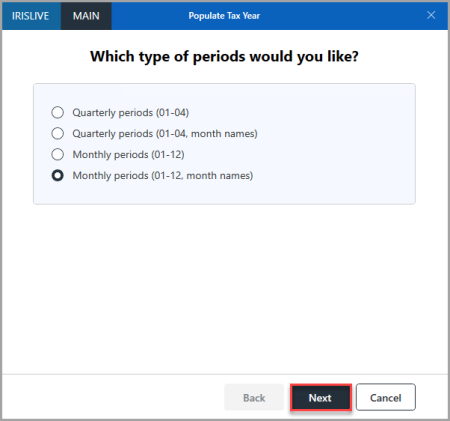
- The Populate Tax Year wizard opens and lists available VAT period profiles, which define how the system sets up the periods. An explanation of each profile follows the graphic. Select the required profile, then select Next.
Quarterly periods (01-04)
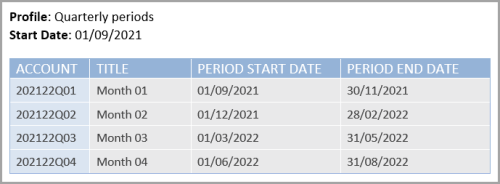
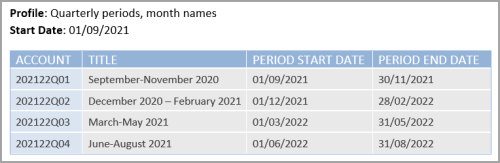
Quarterly periods (01-04, month names)
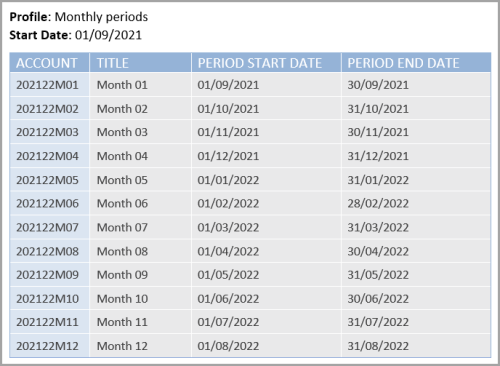
Monthly periods (01-12)
Monthly periods (01-12, month names)
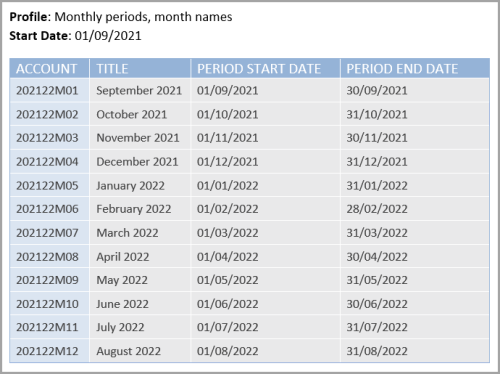
- The When does the year start page opens. Use the calendar to select the required date. Select the calendar header to change the year as required. Select Next.
-
The Basic Details page opens. The Year code is automatically populated based on the start date selected on the previous page. The Access level defaults to 3 and Input Allowed is selected by default. Only change these settings if you want to stop users posting documents to the new VAT periods when you first create them.
The wizard uses this Access Level for all the VAT periods it creates, but you can change it afterwards by selecting the applicable period, then editing the access level on the Security tab.
-
The View, Modify, and Post fields define the security roles that apply to the VAT periods. These roles determine what actions users can carry out for the selected VAT period. Select Drill (...), then double-select the required security role from the Select a role dialog. These options are available:
View - users with the selected security role can view the VAT period.
Modify - users with the selected security role can amend the VAT period, for example, change the Status.
Post - users with the selected security role can post documents to the VAT period (providing they also have access to the applicable VAT input and output nominals).If individual periods have no security roles selected, the system uses the roles specified for the applicable ledger. If individual periods and the ledger have different roles specified, the user group needs both security roles applied.
- When you have applied the required settings, select Next. The Confirmation page opens and shows a preview of the VAT periods that the wizard is about to create. Review the information to check the format is the same as your existing VAT periods and select Back to make any amendments. Otherwise select Finish to create the VAT periods.
- The Account Maintenance window opens with the newly created VAT periods listed. Make any changes, if required (for example, you want to change the security settings using the Security tab). Select SAVE to confirm the new periods.