Display the purchase order icon in IRIS Financials Purchasing
This guidance is only for IRIS Financials Version 7.0.2103 or earlier. If using version 7.0.2223 or later, go to Access to IRIS Financials Purchasing documents.
This topic explains how to make sure the Purchase Order icon appears for a user in IRIS Financials Purchasing.
Use the Distribution module to manage which icons appear for a user on the IRIS Financials Purchasing Home page.
- Select Start > PS Financials > Distribution
- The PSF Distribution Logon dialog opens. Enter your
- Select Masters > Workflow > Document Typesfrom the menu.
- The Document Types Maintenance dialog opens. Select the required document type, for example PORD - Purchase Order, then select Workflow....
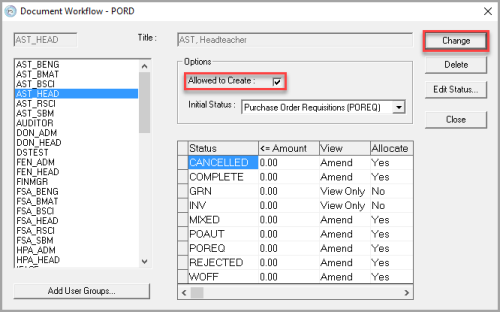
- The Document Workflow dialog opens. A list of user groups that can already access this document type appears in the left-hand panel. Select the user group to which the user for whom the Purchase Order icon is not displayed is linked.
-
The right-hand side shows any access that you have already applied. If not already selected, select Allowed to Create, then select Change to save the settings.
If the user group that needs access does not appear, you must give them access to documents in IRIS Purchasing. If the access applied for the document type is incorrect or missing, you need to amend the status. For more information, refer to Provide access to document statuses.
Even with configured access settings, a user is unable to authorise or reject a document unless they are an approver. For more information, go to Setting Up IRIS Purchasing Document Approvers.