Copy a live to a test database
For training or testing, you can make a copy of your live database so that you can use your system without affecting live data. For example, make amendments to user security to check that the changes are working as expected.
In a copied test database, functionality is limited. Automated processes contain links to the live database and these, therefore, do not work in the test database. Processes limited by function within the Test database include:
-
purchasing authorisation
-
running rules, such as depreciation
-
copying data from a master location to multiple locations, such as the creation of nominals
-
the Reporting Suite is not available.
You can copy data from the live database to the test database, but not from the test database to the live database.
-
From the Login dialog, enter your login details, then select Login.
To check the database and company that you are logging in to, select ADVANCED to show the Database and Company fields. -
Select Maintenance, then select Ledgers from the menu.
-
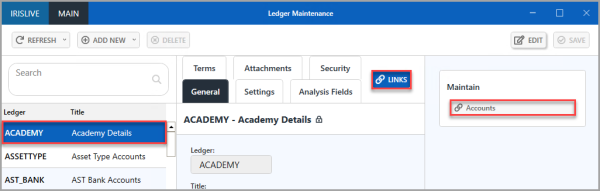
The Ledger Maintenance window opens. Select the SCHOOL ledger from the left-hand panel, select LINKS, then select Accounts from the Maintain panel.
-
The Account Maintenance window opens. Select COMPANY from the left-hand panel, then select the Analysis Fields tab, then select EDIT.
-
To make a copy of the live database, select CopyLiveToTest, then select SAVE.
The process of copying the live to test database can take up to 15 minutes, depending on the size of the database. -
Close the Live IRIS Financials database, then log in again using the Test database. On the IRIS Financials login window, enter your login details, then select ADVANCED to display the Database field.
-
In the Database field, enter the Test database details, then select Login.