Change a currency rate
If a currency type links to an account or nominal that you post transactions to, you may need to change an exchange rate for the currency type. For example, a change to the currency your establishment/organisation use for one of your suppliers has occurred on the stock exchange and needs to be updated from a certain date to make sure the correct exchange rate is applied to transactions recorded on or after the date.
- Select Maintenance, then select Currencies from the menu.
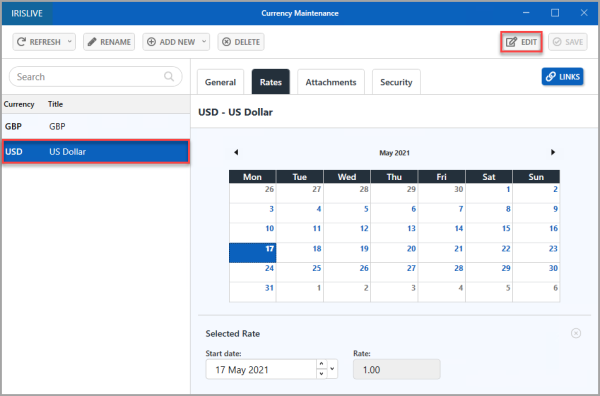
- The Currency Maintenance window opens. Select the currency type for which you want to change the exchange rate from the left-hand panel, select the Rates tab, then select EDIT.
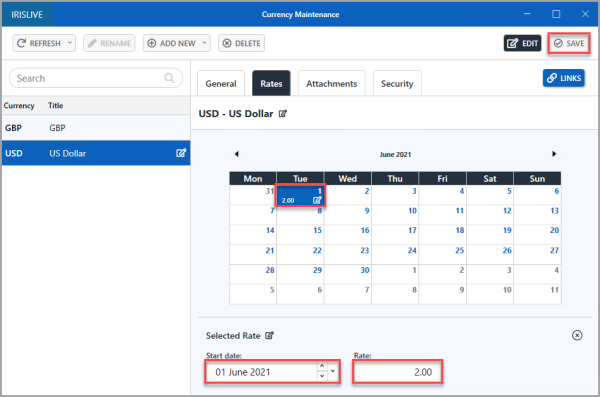
- Select the Start date, then enter the exchange rate that you want to apply from that date in Rate. Do not enter any currency symbols, for example £ or $. The calendar shows the exchange rate against the date.
- Enter any extra required rates as described in step 3, then select SAVE to confirm the details.
- An Update complete message appears. Select OK to close the message and return to the window.