Apply database settings for all users
CUSTADMIN access only
Database settings apply to all users of the current database that you are logged in to.
Some settings are not applied until the next time you log into the software. We therefore recommend that you log out and back in again after you change any settings.
- Select Home, then select Settings from the menu.
- The Settings window opens. Select Database settings for all users from the left-hand panel, then select EDIT to make all editable fields available for editing.
These options are available:
- Apply system settings
- Apply write off settings
- Define document status colours
- Define result limits for enquiries
Apply system settings
Select the System tab. You can apply the following settings:
 Number of Days Old warning when posting documents
The number of days entered in Days Old Warning determines when a warning appears indicating that the document is older than the number of days specified. It does not prevent the document from being posted in IRIS Financials but does prevent documents from being posted in IRIS Purchasing.
User Value Decimal Places/Home Decimal Places
This value sets the default number of decimal places in applicable value fields. The default is 2. You can change it as required.
Allocation Write-off Date
When you allocate documents, the system sets an as at date for audit reporting. Select one of these options from the Allocation Write off Date list:
-
Use Highest Allocation Date - uses the later of the two document dates as the date they were allocated. For example, if an invoice was dated 1st December, and was allocated to a payment for the invoice dated the 7th December, the allocation date taken would be the 7th December.
-
Use Today's Date - uses the date of the day you are allocating the documents.
Currency Conversion Mode
(If your establishment/organisation processes transactions in a foreign currency, a conversion mode can be set to correctly convert foreign currency values entered. Select one of these options from the Currency Conversion Mode list:
-
Foreign Units Per Home Unit (Multiply) - Uses the transaction value entered in a foreign currency to multiply against by the sterling (GBP) conversion value set within the software.
-
Home Unites Per Foreign Unit (Divide) - Uses the transaction value entered in a foreign currency to divide against a reciprocal sterling (GBP) values set within the software.
Setting whether to apply security roles
You can apply security role settings to documents, ledgers, and nominals. These settings determine which functions users can use. Security roles are on by default. To switch them off, clear the applicable checkbox from the options in this graphic. Select SAVE to confirm your changes.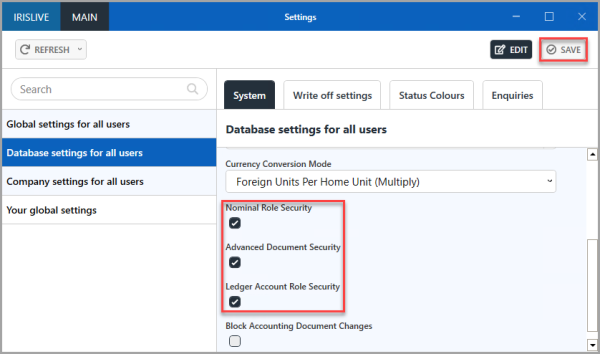
Block Accounting Document Changes
By default, you can edit any document in IRIS Financials. If you want to prevent this from happening, select Block Accounting Document Changes.
Apply write off settings
When you allocate documents that do not balance perfectly, you can define settings to write off the difference automatically. This can be useful where the VAT on a document differs by a few pence. The settings determine the document input form used, together with the maximum amount that can be automatically written off using this method.
- Select the Write-off Settings tab, then select Drill (...) in Nominal Write off Document Type.
To set a write-off document for foreign currency transactions, select Drill (...) in Nominal Currency Write off Document Type. - Double-click
- Finally, define the maximum amount that can be automatically written off, for example, 1 (do not include any currency symbols, that is, £, $, and so on). Select SAVE.
Define document status colours
By default, enquiries use a standard set of colours to identify the status of documents. You can change the colours to suit your requirements, or choose not to use colour at all.
We recommend leaving the colours at their default as the use of different colours can cause confusion when referring to our online help or when contacting our Service Desk, as the colours many not be the same.
- Select the Status Colours tab, then select EDIT.
- Select the area of the software the colour is used from the Status Colour Mode list. The following options are available:
Row - displays the full document line on the enquiry in the status colour.
Indicator Column - displays the document status colour in a single column of the document line on the enquiry.
None - does not display any status colour for the document line on the enquiry. - To add a border to or remove a border from the document lines on an enquiry, select or deselect Add Darkened Border.
- To change the status colour, select the required colour from the list colour picker.
- When you have selected the Status Colour settings, select SAVE to apply the changes.
Define result limits for enquiries
When you install the software, the system sets default limits for enquiry results. You can change the limits for the results you want displayed. Enter the required value for each limit option, then select SAVE.