Add accounting periods with the Populate Period Year wizard
CUSTADMIN access only
Depending on your current system setup, you may need to create a new financial year and accounting periods. You can set up these periods for a financial year using the Populate period year wizard, or create each period manually in the Period Maintenance window. This topic describes how to create accounting periods using the wizard. If you prefer to do this manually, go to Add accounting periods manually.
- Select Maintenance, then select Period
- The Period Maintenance window opens. The left-hand panel lists existing financial years. To create a new financial year, select ADD NEW, then select POPULATE WHOLE YEAR.
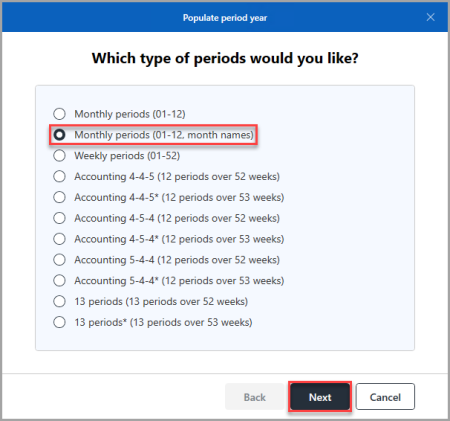
- The Populate period year wizard appears. Select the type of periods required, then select Next. This example uses Monthly periods (01 -12, month names).
- Next, select the date from the calendar that the financial year starts, for example, 1st September 2021, then select Next.
- The Year code is automatically populated. By default, the system selects the extra accounting periods 00, 98, and 99. Select Next.
Set periods 00, 97, 98, 99, and any other extra periods you create, to a type other than Normal. This tells the system to exclude these periods when users post transactions dated in August or September.
- A Summary page opens listing the financial year and accounting periods that are being created. Check the details, then select Finish to create the financial year and accounting periods.
- On the Period Maintenance window, the financial year and accounting periods created appear in the left-hand panel with the newly created financial year automatically selected. Select SAVE to save the new financial year and accounting periods.
- An Update complete message appears. Select OK to close the message and return to the window.
Next, apply security settings to each accounting period to control whether users can post documents to it. For more information, refer to Open and close accounting periods.