Customise columns for imports
When importing data into the software, there may be instances where the columns in the file being uploaded do not match the order of the column headings in the PSF Data Transformation Preview panel when running the import.
To correct the data so that it appears in the correct column, you can customise the columns in the PSF Data Transformation Preview panel so that the data is in the correct column. Alternatively, you can amend the csv data file and upload it again.
-
On the PSF Data Transformation wizard Step 2, select Customise Columns.
-
The Column Definitions dialog opens. From the Source Columns panel, select a column that contains incorrect data, then in the SourceFileIndex field, overwrite the number with the number of the column in the Preview panel on the PSF Data Transformation wizard that contains the correct data, then select OK. In this example, you select Account and enter 2.
You must update all columns that contain incorrect data to import the information correctly.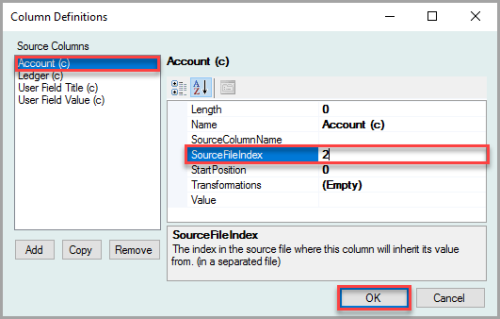
-
On the PSF Data Transformation wizard Step 2, the data appears in the correct column in the Preview panel.