Select criteria for enquiries
Enquiries are used to search in IRIS Financials on using specific criteria or to search for all documents, nominals, ledgers, accounts, and so on.
You typically use enquiries for these reasons:
- Viewing documents and transactions recorded by your establishment/organisation using a Detail Enquiry or Document Enquiry, from which documents can be cancelled, edited, or have attachments and comments added. For more information, refer to Detail enquiry functions or Document enquiry functions.
- Producing lists of ledgers, accounts, nominals, and so on.
- Creating reports manually, if you need a specific report that does not exist in the Reporting Suite module.
Select any available enquiry from the Enquiries menu.
These enquiries are available:
Detail Enquiry - produces a list of the selection criteria but does not generate any detail lines. For more information, refer to Detail enquiry functions.
Document Enquiry - produces a list of the selection criteria with detail line information. For more information, refer to Document enquiry functions.
Ledger List - produces a list of account, nominal, or ledger details. For more information, refer to Producing a Ledger List.
Trial Balance - produces a Trial Balance based on the criteria selected. For more information, refer to Run a trial balance.
Summary Enquiry - allows you to group information by Nominal, Account, Nominal and Account, Account Analysis, Account Indices, Nominal Analysis, Detail Analysis, Period or a combination of everything.
Summary Balance Enquiry - produces a summary of transactions on your nominals grouped by Nominal Analysis field or Indices.
You can also access enquiries that have been saved as Favourites and or load a previously run enquiry from History.
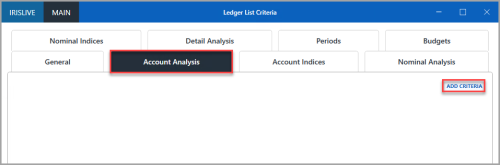
When you select an enquiry, an Enquiry Criteria dialog opens. You can set criteria by selecting various options from each of the tabs available for the enquiry.
The tabs available vary depending on the type of enquiry selected, but the functionality detailed in this topic for selecting criteria remain the same.
Select the required criteria for the enquiry you want to run, then select OK to display the results in an enquiry window. If you must select criteria for the enquiry, a warning message appears and lists the criteria you must select.
For certain reports and processes you need to select specific criteria for the enquiry. Where this applies, the process topic gives instructions on which options to select.
The enquiry window opens with the results of the criteria selected in the Enquiry Criteria dialog. Functions available in the enquiry window depend on the type of enquiry you have selected.
For certain processes you need to use specific functions in the enquiry window. Where this applies, the process topic gives instructions on which functions to select.
These functions are available in all enquiry windows:
REFRESH - refreshes the data in the results, so any new data that meets the criteria and that you added since you ran the enquiry appears.
CRITERIA - displays the Enquiry Criteria dialog, where you can update the criteria for the enquiry.
FAVOURITE - displays the Add Favourite dialog, where you can save the enquiry to run again in future rather than having to select the criteria each time.
SETTINGS - displays a list from which you can save or rename column selections to personalise the enquiry window, or you can reset the columns and layout to default settings. For more information, refer to Personalise an enquiry window.
PRINT - displays the Print Preview dialog, where you can print a copy of the enquiry results.
EXPORT - displays the Save As dialog, where you can save a copy of the enquiry results as a Microsoft Excel format document.
EXPAND ALL - where detail information is provided for the enquiry results, select EXPAND ALL to display detail lines for all items listed.
COLLAPSE ALL - where detail information is provided for the enquiry results, select COLLAPSE ALL to hide detail lines for all items listed.
Personalise an enquiry window
If you frequently enquiries for certain criteria that appears in fields that are not displayed in the default settings for the enquiry window, you can select the columns then save the settings to display them automatically when you run a future detail enquiry.
These options are available for personalising an enquiry:
Select and save columns as default
Reset default columns or layout
Select and save columns as default
-
On the enquiry window, right-click the column headings to display the column pop-up menu. Select to select the columns you want displayed or to remove a selected column from the display, then when you have all the columns you want displayed, select SETTINGS, then select SAVE AS DEFAULT COLUMNS.
-
The Save As Default Columns message appears. Select OK to return to the enquiry window.
Rename columns
If you want to rename a column to something more appropriate, for example one of the user fields that holds an accounts email address, you can rename the column heading in the enquiry.
-
On the enquiry window, select SETTINGS, then select RENAME COLUMNS.
-
The Rename Columns dialog opens. Select the column you want to rename, then overwrite in the Display Title column the name you want displayed in the column heading on the enquiry window, for example, Accounts Email, then select OK.
Reset default columns or layout
If you have removed or added columns to the enquiry that you no longer want displayed, you can reset the columns in the enquiry and the layout (which removes the column headings).
-
On the enquiry window, select SETTINGS, then select RESET DEFAULT COLUMNS.
-
The Reset Default Columns confirmation message appears. Select Yes to confirm the reset.
-
The Reset Default Columns success message appears. Select OK to return to the enquiry window.