Install updated EFA budget forecast return report
PS Cloud customers must log a support ticket (you need a Service Cloud account) with the subject heading of Install Updated EFA Budget Forecast Return Report.
If you are an On-Premise customer, do the following:
-
From the Windows toolbar, select IRIS Auto Updater.
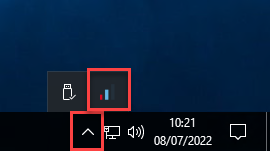
If IRIS Auto Updater does not appear, it may be hidden or not installed. Ask your IT Administrator to install the application.
- Select Manual Update.
- Select ..., then from where you saved this year's install file, Open the EFA Budget Forecast Return.abp file for the academic year.
- Select Next, then Please select for MANUAL 'Data Source' configuration. Enter credentials below. Enter the credentials for your organisation's IRIS Financials report server as follows:
- Please enter your Report Server URL — The location of the report server hosting the IRIS FinancialsStandard Reports
- Please enter your 'Data Source' Username. PSFDBA will be used if not specified. — The report sever username
- Please enter your 'Data Source' Password. PSFDBA password will be used if not specified. — The password associated with the above username
If manually entering the data source configuration does not work, select Please select for AUTO 'Data Source' configuration. PSFDBA is the default..
- Select Next, then check the Summary information is correct.
- Select Install.
-
A select displays against each completed action and at the top when the update is complete.
If there are any errors, from Actions, select Save Log. For help resolving the issues, log a support ticket (you need a Service Cloud account) with our Support Team and include the saved error file.
- Close the IRIS Auto Updater.
The Prepare for the EFA budget forecast return is then ready to use.