Find document or item events
Document events show what processes a document has been through, such as when someone created or authorised it. You can open events for both the document and individual item lines on a document.
Document events
- To review the processes a document has been through, select View Events.

- The Document Events window displays each event showing the date, time, and event owner. Scroll down for further events.
- Select Close.
Item events
You can carry out the same process for individual item lines within a document. This is achieved by selecting View Events on the document line.

As with document events, the system shows any line events. Each event shows the date, time, and event owner.
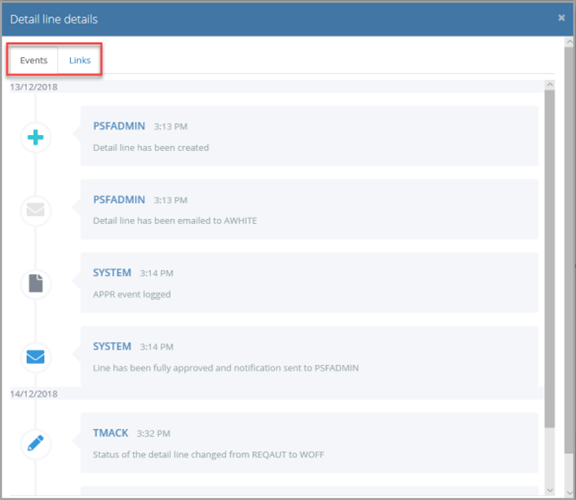
When viewing item lines, it is also possible to view any related documents by selecting the Links tab.
If a line or document has been cancelled, the links are not available.
This is particularly useful if you want to check which documents relate to a specific purchase.