Use document templates
You can create document templates for requisitions and purchase orders so that you can reuse them. This is particularly useful for similar items that are ordered on a regular basis. This might include catering supplies and stationery.
You can create separate templates for requisitions and purchase orders. Each template is specific to its document type, so you cannot use a requisition template to create a purchase order. They are then available for use with any supplier. Templates are for your use only.
In this example, a requisition template is being created for supplies that are ordered on a monthly basis.
- Create a new document (in this case a requisition).
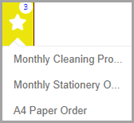
- The Template icon displays the number of templates available for this document type. Point to the icon to show a list of available templates.
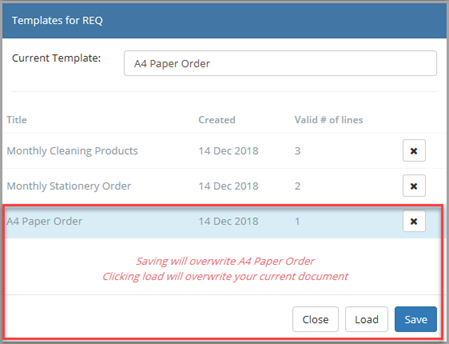
- Alternatively, select the Template icon to display the Templates for window.
-
Select the template you want to use. The template name is highlighted, and a warning message appears in the lower section of the window advising that opening the template overwrites your open document (if you have one). Select Load.
Do not select Save at this point otherwise the existing template is overwritten with the blank document that you created.
- After selecting Load, the applicable document appears populated with the information stored in the template.
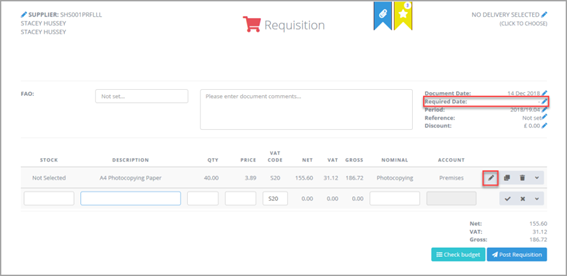
- Add/amend the required document information, such as the Required Date, Reference, and so on. In most cases you want to edit the quantity of the items required. This is achieved by selecting the Edit icon for the required line item, as the earlier graphic shows.
- Edit the quantity, together with any other fields within the line item. Select the Validate icon to update the line.

- Make any further amendments then post the document in the usual way. If required, you can also save this document as a template. For more information, refer to Create document templates.