Rename purchasing document field labels
You can relabel certain fields that appear in purchasing documents to reflect more accurately the terms your organisation uses. Changing the labels is achieved using a process called white labelling.
You can label two fields, which by default are labelled Nominal and Account.
- From the Home page, select the Settings icon.
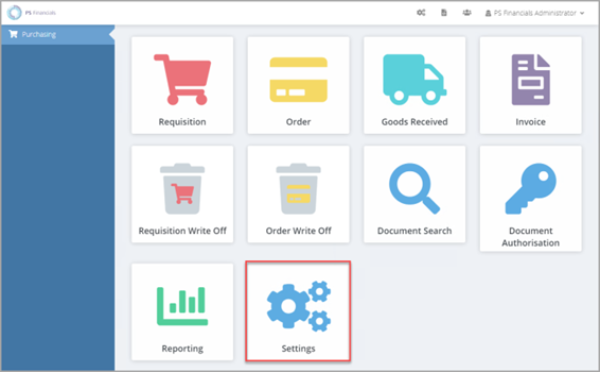
- The Purchase Settings page opens consisting of various tabs used to apply relevant settings. Select the White Labelling tab.
-
Enter the new required label in Nominal or Account, then select Save to confirm the changes.
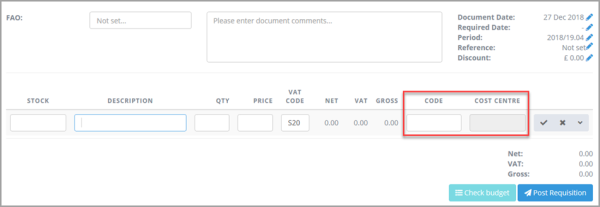
In this example, Code and Cost Centre have been added.Select Save so that the system applies the new labels.
- The next time you create a purchasing document, the label names appear as the labels you selected, as this graphic shows.