IRIS Financials Purchasing home page overview
The IRIS Financials PurchasingHome page provides access to all the functionality within the application.
The icons available depend on your access level and may therefore be different from this graphic.
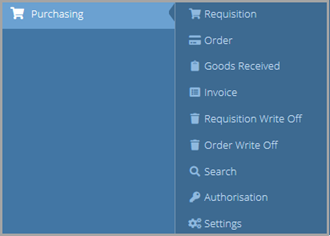
If you prefer, you can access the same functions from the Purchasing menu.

Toolbar icon
| Icon | Description |
|---|---|

|
Select this icon to access any available settings. |

|
This icon is for System Administrators. Use it to check and assign licences. |

|
This icon is for System Administrators. Use it to check which users are accessing IRIS Purchasing and, if required, to log out these users automatically. |

|
Displays the logged-in user and provides access to their account options. |
Requisition icon
Select this icon to create a requisition. Your establishment/organisation may use a different system for purchase requisitions instead.
Once added, the requisition needs to be authorised before progressing to the purchase order stage.
Order icon
Select this icon to create a purchase order. You can either create a new purchase order or progress a requisition that someone has entered and authorised.
Goods received icon
Select this icon when the goods have been received. This generates a goods received note (GRN) from the applicable authorised purchase order, so that you can check that the correct goods have been received.
Invoice icon
Select this icon to create an invoice. Carry out this function once you receive the supplier invoice. This process creates an invoice in IRIS Purchasing and creates a POIN (Purchase Order Invoice) in IRIS Financials, so that the invoice can be paid.
Requisition write off icon
Select this icon to write off items included in an authorised requisition. For example, if a supplier had insufficient stock of the items requested. This process reduces the expected quantity and creates two purchase orders – one order for the items that have been written off (given a status of WOFF) and one for the items that the supplier has stock of.
Order write off icon
Select this icon to write off items included in an authorised purchase order. For example, if a supplier had insufficient stock of the items requested. This process reduces the expected quantity in the purchase order and creates a GRN for the items that could not be supplied. You can then create a GRN for the goods that the supplier delivers at a later date, once you receive them.
Document search icon
Select this icon to search for any document in IRIS Purchasing. A wide range of search criteria are available to limit the results returned. It is also possible to save searches to a favourites list.
Document authorisation icon
Select this icon to authorise requisitions or purchase orders. You are notified by email if a document requires authorisation. Alternatively, select this icon to open any documents that need authorisation. Your System Administrator must set the applicable access levels for you to authorise documents.
Reporting icon
Select this icon to run and open reports within IRIS Purchasing.