Give users access to IRIS Financials Purchasing
This guidance is only for IRIS Financials Version 7.0.2103 or earlier. If using version 7.0.2223 or later, go to Security for IRIS Financials applications.
CUSTADMIN access only
When you first install IRIS Financials Purchasing, the installation sets up the required user groups and assigns users to them. However, you may wish to provide access to IRIS Purchasing for extra user groups, for example, a new role exists within the establishment/organisation. Any new users need to be added to the applicable user group, then assigned a IRIS Purchasing licence.
This topic assumes that you have created (or already have) the required user group for those users whom you want to have access to IRIS Financials Purchasing. For more information, refer to. Add a new user group and Adding Users to a User Group.
Access to the IRIS Financials Purchasing module is provided in the Administrator module in .IRIS Financials
-
Select Admin Modules, then select Administrator from the menu.
-
The PSF Administration Logon dialog opens. Enter your
-
The PSF Administration dialog opens. Select Expand (+) to view the files within the Database folder.
-
Select the required database from the Database folder
- Scroll to the bottom of the User Group column, then select to select the required user group from the list. In this example, you have selected Financial Managers.
- Next, select WebPortal from the Application list, then enter the required access level in Access Field for example, 3. Select Apply to save your changes.
- Any finance users (that is, Finance Managers/Administrators) also need access to IRIS Financials. Repeat the previous process, selecting the same user group, then Accounting as the application together with the applicable access level.
- Anyone who is to be administering IRIS Financials Purchasingneeds access to WebPortal, Accounting, Distribution, and Rule Maint.
- If a user who only has access to IRIS Financials Purchasing, but is to be authorising IRIS Financials documents, they also need access to IRIS Financials and the relevant IRIS Financials document types to authorise them.
-
In IRIS Financials select Home, then select Command Security.
-
The Command Security window opens. Select Expand (+) to display the options in the Application Menu folder.
-
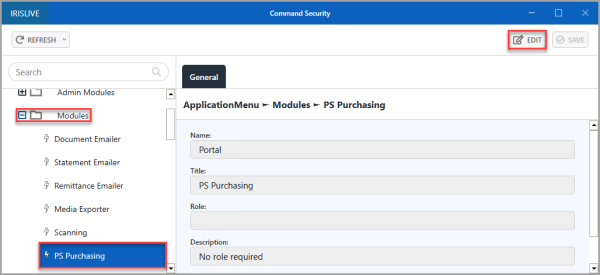
Select Expand (+) to display the options in the Modules folder, select PS Purchasing, then select EDIT.
-
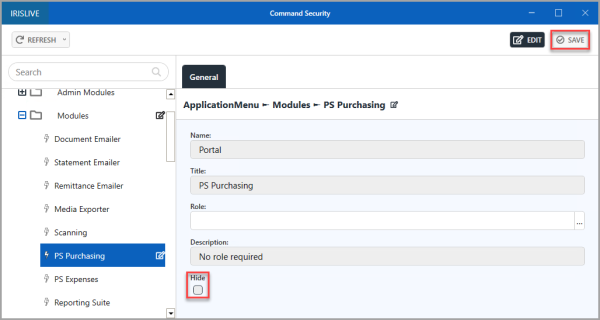
To make the IRIS Financials Purchasing module available from the IRIS Financials menu, make sure Hide is deselected, then select SAVE.
If you have assigned a security role in Role, only user groups that have access under that security role have the module in the menu. If required, add the user to the Security Role assigned to the module. For more information, refer to Assigning Security Roles to User Groups.
-
An Update complete message appears. Select OK to close the message and return to the window.
When you have assigned access to the module, and set up the access to IRIS Financials Purchasing in the IRIS Financials menu, you need to assign the new user to a licence and provide access to applicable documents. For more information, refer to Assign users to IRIS Financials Purchasing licences and Provide access to document statuses.