Post fixed asset depreciation manually
Some Of the nominals and ledgers used in this topic may be different to those in your chart of accounts.
Depreciation can be manually posted by entering applicable depreciation journals as frequently as required. This method is useful if you calculate your depreciation manually (perhaps using a spreadsheet) and want to enter the depreciation value. This method is also used if your depreciation is recorded as a Reducing Balance (RB) (depreciation is based on a monthly/yearly percentage, which reduces each month).
Before you manually post fixed asset depreciation, you must have added the fixed asset types to IRIS Financials. For help adding fixed assets, go to Add or edit fixed asset types and Add a new fixed asset.
This topic assumes that you are familiar with the completion of document input forms. If you need more detailed instructions (such as selecting dates, periods, and accounts), refer to Completing Document Input Forms.
- Select Documents, then select Document Input from the menu.
- The Document Input dialog opens. Select Drill (...) in Document type, then double-click ASDJ - Depreciation Journal (where AS represents the location code of the document type) from the Select a document type dialog.
- The default input form for the selected document type appears in Input form, in this example, Manual Depreciation.
- The Number field defaults to the next available number of this document type and you are unable to amend the document number.
- The Date defaults to the current date and the Period defaults to the current accounting period. These should reflect the dates that the depreciation should occur. To change the date, select the Date down arrow and select the required date from the calendar. To change the period, select Drill (...) in Period, then double-click the required period from the Select a period dialog.
- Select OK to confirm your selections. The Manual Depreciation document input form opens.
- The Location displays the default location for the selected document type.
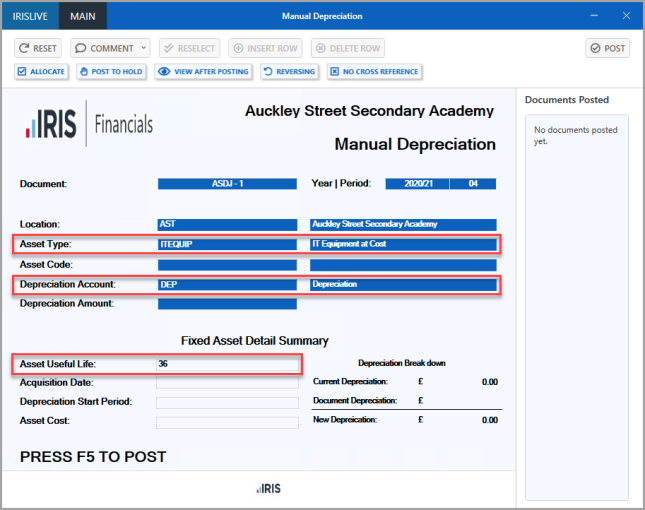
- Double-click in Asset Type, then select the required asset type from the Select ASSET TYPE key dialog.
- The Asset Type code and description are populated together with the Depreciation Account and Asset Useful Life, which are extracted from the details stored in the asset type account.
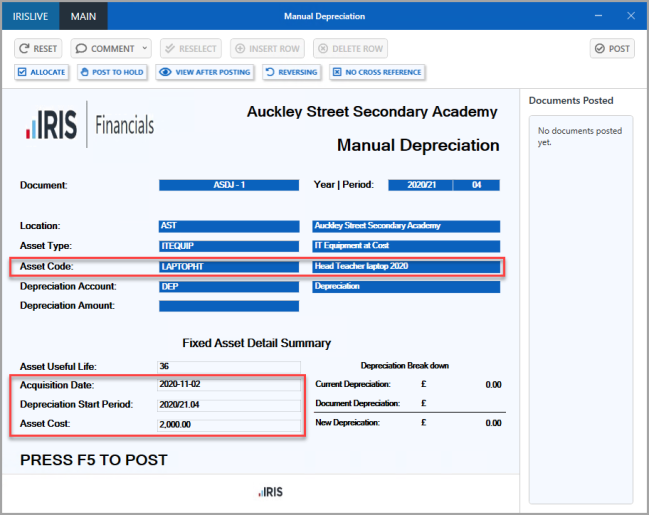
- Double-click Asset Code, then double-click the required asset from the Select account dialog.
- The remaining fields in the Fixed Asset Detail Summary are populated from the selected fixed asset account details.
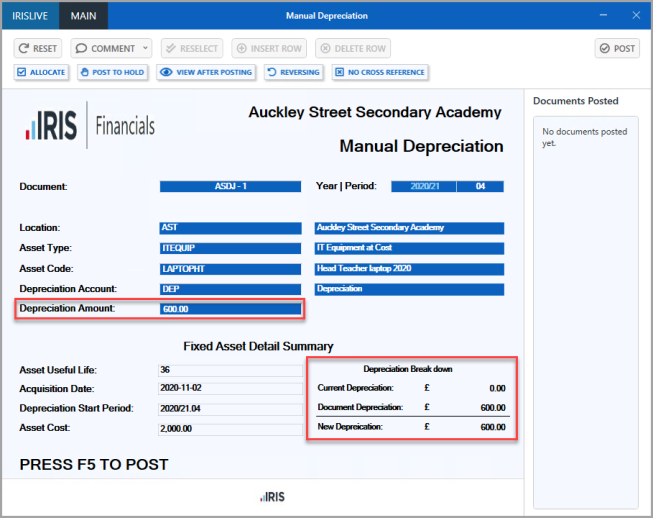
- Enter the Depreciation Amount (do not enter any currency symbols, that is, £, $, and so on) The Depreciation Break down section displays any accumulated depreciation, together with the depreciation added through this document. Press F5 to post the document. Repeat this process for any other assets you want to record depreciation for.
- Once posted, the document name appears in the Documents Posted section. Repeat this process for any other depreciation required.