Email customer statements using Statement Emailer
In IRIS Financials the Remittance Emailer module is used to email and print remittance advices for distribution to suppliers that are based on a previously defined paylist. Remittance Emailer does not identify payments that you post manually (that is, using a document input form). If the payment for a supplier has not been allocated for any reason (for example, if you want to change the accounting period for a specific invoice), the paylist stamp is removed from the supplier, which means that they do not appear in the search for that paylist and therefore a remittance document would not be produced or emailed for that supplier.
Before using Remittance Emailer, there are some settings that need to be configured for each user. For more information, refer to Configure the Emailing Suite.
- Log into Remittance Emailer as described in Log into Remittance Emailer. The Remittance Emailer window opens.
- Enter the required search criteria as described in Select documents and accounts in Statement Emailer.
- The paylist appears. Select Expand (+) next to the paylist name to show the suppliers or people in the paylist.
- Select the checkboxes next to the accounts you want to send remittances to. If you point to the Mail icon, the email address for the account appears. If you double-click the Mail icon, you can edit the email address. For more information, refer to Add or amend email addresses in the Emailing Suite.
- If you want to preview the remittance before sending it, right-click any line and select Preview Report. To print a copy of the remittance advice, select the Print Remittance icon on the toolbar (select the required printer by selecting the list arrow next to the icon).
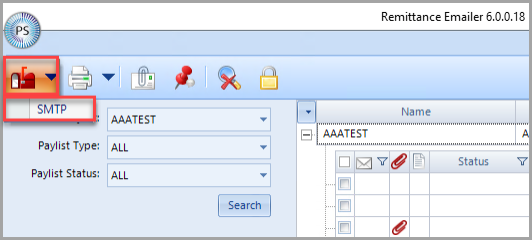
- To send remittance emails to the selected accounts, select the Email Remittance icon, then select the correct SMTP option from the list.
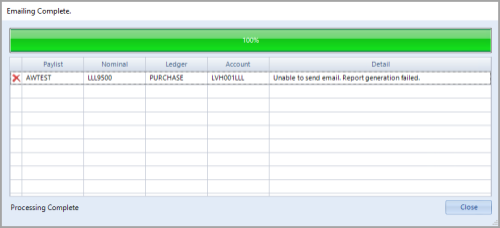
- The Emailing Complete dialog opens, as this graphic shows, to confirm that the system sent the emails. Select Close to return to the list of remittances. For the remittances you have sent, the status shows Emailed.
- If you receive this error, refer to Resolve the Report Generation Failed message.