Document types and input forms overview
Financial documents are added to IRIS Financials using a document input form. There are two types of form:
-
Summary input form – contains a small number of fields, typically used for bank and payment transactions:
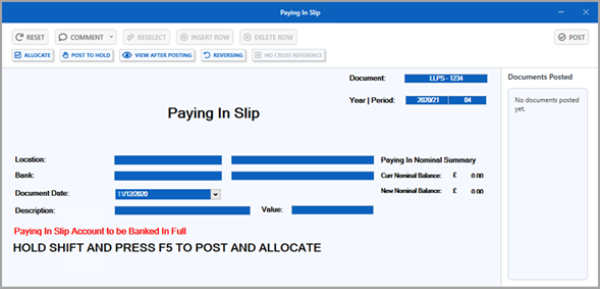
-
Detailed input form – contains an extra section with columns and rows that let you enter multiple nominals and ledgers on the same form, typically for invoices and more complex financial transactions.
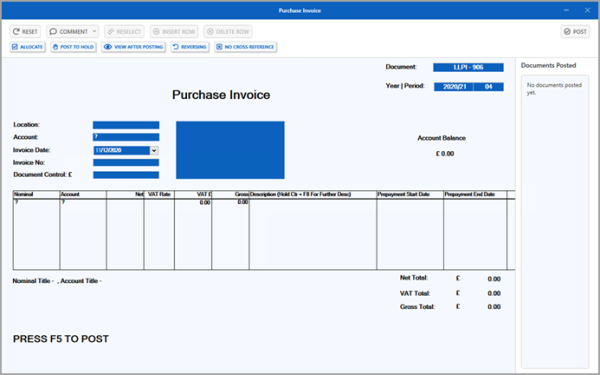
Each document input form comes from a document type, which groups forms into categories such as paying in slips, purchase invoices, payroll journals, and so on.
Document input form functions
The function buttons appear on the document input form window, and the system activates them based on the type of document you are entering. If an option is unavailable, it is not applicable to the document type. Select the required function button to apply the setting, or display the extra windows/dialogs or menus.
RESET - removes all the details from the document input form to display a blank form.
COMMENT - select either DOCUMENT COMMENT or DETAIL COMMENT from the menu to display the Document Comment or Detail Comment dialog, where you can add or remove a comment to/from the document or an individual detail line. For more information, refer to Add or remove document comments.
RESELECT - displays the Register documents dialog for the document type, where you can select a register document to edit or complete.
INSERT ROW - inserts an extra item/detail line to record the details of individual items that make up a payment. (This option is not available for summary document input forms).
DELETE ROW - removes the selected item/detail line. (This option is not available for summary document input forms).
ALLOCATE - displays the Allocation window if toggled on before you post the document.
POST TO HOLD - posts the document to the hold database if it is toggled on before you post the document.
VIEW AFTER POSTING - opens the Document Enquiry window if you switch it on before you post the document.
REVERSING - toggle on before posting the document to create a reversing version of the document.
NO CROSS REFERENCE - toggle on to assign cross referencing to the document before posting (typically, not required).
POST - select to post the document to the period selected in the Year | Period field.
Documents Posted panel
The Documents Posted panel displays links to the documents, when a blank document form opens after you post the document you have entered. Selecting a link to a posted document, displays the details of the document in a Detail Enquiry window.