Access user cloud sessions remotely
CUSTADMIN access only
There may be occasions when you want to remotely connect to another PS Cloud user’s session, to help them with a support issue or to provide training. This is referred to as shadowing.
To shadow another user's PS Cloud session:
- Log in to PS Cloud using your usual username and password.
- Select the Windows button, then select PS Financials > Self Service from the list of installed applications.
- The PS Cloud Self Service Home page opens. Select Shadow next to the applicable user.
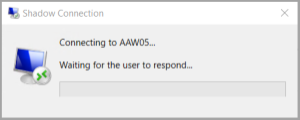
- A Shadow Connection message window opens.
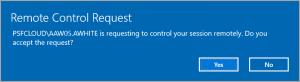
- On the end-user’s PS Cloud environment, the following Remote Control Request message prompt is displayed. The end-user can select whether to accept or decline the remote control request, by selecting Yes or No.
- If the user selects Yes, a new window opens, which displays the user’s PS Cloud environment. The following graphic shows an example of a PS Cloud shadow session. The Controlling window displays the user whose session you are controlling.
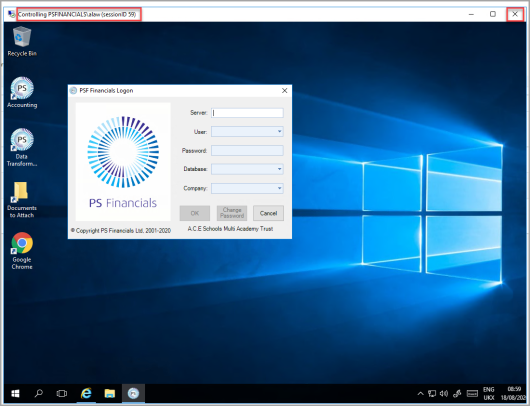
- To close a remote session, select X in the top right-hand corner of the Controlling window, as displayed in the previous graphic.
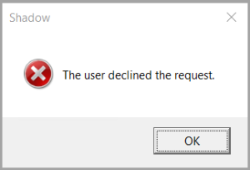
- If the end-user selects No, a message displays on PS Cloud Self Service advising the user has declined the request.