Add PS Cloud users
To give a user access to IRIS Financials products using a Remote Desktop Program (RDP) connection, create a PS Cloud account for them.
-
In the PS Cloud Self Service, select Accounts.
- Select Add User.
-
It is recommended you automatically generate the Username — enter the users First Name and Last Name.
If you do not want to use the generated Username, enter the details you want.
- To create a temporary password, select the generate icon next to Password.
Use the Eye icon next to Password to display the password details.
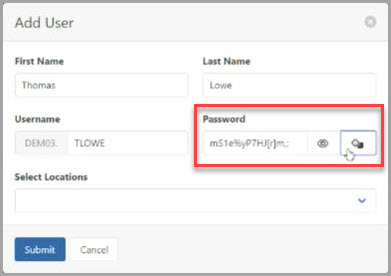
- From Select Locations, select all the required locations the user needs access to .
- To save the account, select Submit.
- To provide access to the RDP session, activate the account.
-
Copy the Username and Password details into separate emails to the user.
For security purposes, do not send the Username and Password in the same email.
-
Send the login details to the user.
When the user logs in for the first time they are prompted to set a new password.
When sending the user their login details, to help them learn about using their PS Cloud profile, we recommend including a link to the Getting Started Guide.