Import bank statements
This topic is only for manually importing bank statements. If using Open Banking, go to Import Open Banking statements and transactions
To carry out a bank reconciliation, add all required bank statements to the system. You usually do this by importing the statements from a CSV file, which you can download from your establishment / organisation's bank. There may however, be occasions when you are unable to access online statements and it is therefore possible to manually add statements, as described in Manually adding a bank statement.
If you are importing a bank statement to an account for the first time, you must have entered an opening balance for the bank account before importing the bank statement. For more information, see Recording bank account opening balances.
To import bank statements, you need a statement definition XML file. These files are different for each bank. The required file should have been installed as part of your system implementation, but banks do change these files, sometimes without warning.
If you experience any issues when trying to import your bank statements, contact the support desk with a copy of your statement definition file so that they can check that you have the latest version, and if necessary, send you a new version.
Each import is counted by the system as a separate sheet and given a sheet number. When you download statements from your bank, make sure the date range does not overlap with the last downloaded statement, otherwise you may import duplicate entries.
Do not include the day of the download in the file because the download may miss unprocessed transactions for that day.
We have also produced a video to guide you through this process — go to Import bank statements (video).
-
Go to Banks, then select Bank Statement Import from the menu.
-
The first page of the Bank Statement Import wizard appears (Step 1 of 4). To select the required bank statement CSV file, select Browse....
-
The Open dialog opens. Locate and select the required bank statement CSV file, then select Open.
-
The wizard opens again and shows the selected file, as the following graphic shows. Select Next.
Make sure that the selected bank statement CSV file is not open anywhere. The import fails if the CSV file is not closed.
-
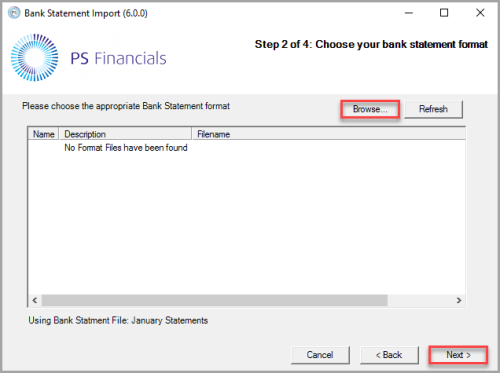
The Step 2 of 4 page of the wizard appears. If this is the first time you have used the wizard, select Browse..., select the folder that contains the bank statement definition file from the Browser For Folder dialog, then select OK.
-
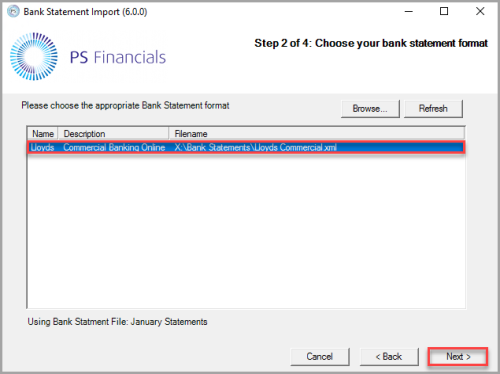
Any previously selected statement definition files appear in the Bank Statement format panel, select the required file, then select Next.
If you do not have a statement definition file or are unable to find one, email the support desk with a copy of the CSV file you are trying to import and support can send a statement definition file which matches the unique format of your bank account.
-
The destination file path of the selected statement definition file appears in the Bank Statement format panel. Select Next.
-
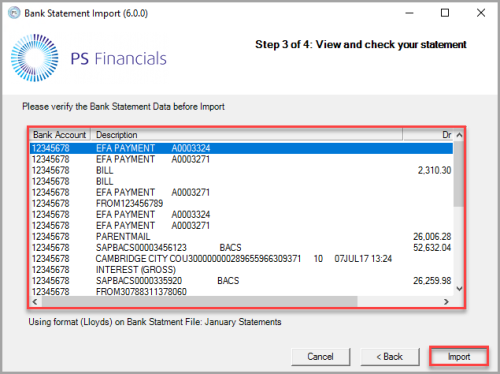
The Step 3 of 4 page of the wizard appears. The transactions from the selected bank statement file are in the Bank Statement Data panel. Check the bank statement data is correct, then select Import.
If any of the displayed transactions appear incorrect, check that the transactions in the original uploaded CSV file are correct. On the Bank Statement Import wizard, select Back until you reach Step 1 of 4, then select Browse... to re-select the CSV file (make sure the file is closed) and upload it again. Alternatively, the bank statement can be manually added to the software as described in Manually adding a bank statement.
-
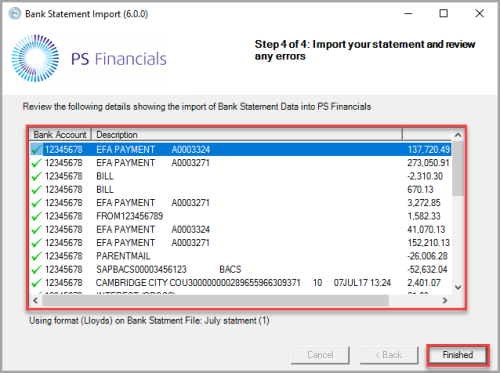
The Step 4 of 4 page of the wizard appears. Transactions included in the bank statement file appear in the Review panel. Successfully imported transactions appear with a Tick icon next to the transaction line. Unsuccessfully imported transactions appear with a Cross icon. Check the status of the transactions, then select Finished. The imported bank statement is then available in the Bank Statement Maintenance window.
If any lines are missing, these can be manually added as described in Adding extra lines to an imported bank statement.