Manage approver holidays or absences
This guidance is only for IRIS Financials Version 7.0.2103 or earlier. If using version 7.0.2223 or later, go to Manage approver holidays or absences.
When an approver is on holiday, it is often necessary to set another user as the holiday approver, to make sure orders are not held up in the system.
If an approver is marked as on holiday, all orders are re-routed to the holiday approver within 72 hours.
If the user's Holiday Approver is also absent, the system does not send the document to an alternative approver. The system sends the document to the absent approver, so they cannot approve it until they return.
When more than one approver in the workflow is absent at the same time, set the available approver as the approver for all users in the workflow.
For example: You set User B as holiday approver for User A, and you set User C as holiday approver for User B. Both User A and User B are on holiday at the same time. The system sends the document for approval to User B and never sends it to User C.
If the approver is not on holiday and the authorisation is still outstanding after 72 hours, a chase email is automatically sent to the original approver.
If you specify a Holiday Approver for a user, the system uses the Holiday Approver's own approval limit, not the limit of the original approver.
When you specify a Holiday Approver, check that their limit is high enough to approve for the user they are covering for.
If the Holiday Approver has a higher limit than the original approver, then the approval may go to a different approver who is a lower tier than the holiday approver, if they have a sufficient approval limit. This example explains how it works:
User A has an approval limit of £1,000 and is on holiday.
User B has an approval limit of £2,000.
User C has an approval limit of £5,000. User C is the designated holiday approver for User A.
Single Approval:
A purchase order is raised for £750.
User B approves the purchase order as User C's limit is £5,000 despite being the holiday approver for User A.
Tiered Approval:
A purchase order is raised for £4,000.
User B approves the purchase order first before User C as they have the lower approval limit. User C has a limit of £5,000, even though User C is the holiday approver for User A.
If you use IRIS Financials Purchasing, you enforce orders to be re-routed by repolling the documents if the 72 hour period is too long. For more information, refer to Repolling Documents in IRIS Financials Purchasing.
-
Go to Maintenance, then select Accounts from the menu.
-
Double-click the USERS ledger from the Select a ledger dialog.
-
The Account Maintenance window opens labelled according to the ledger selected. Select the required user.
-
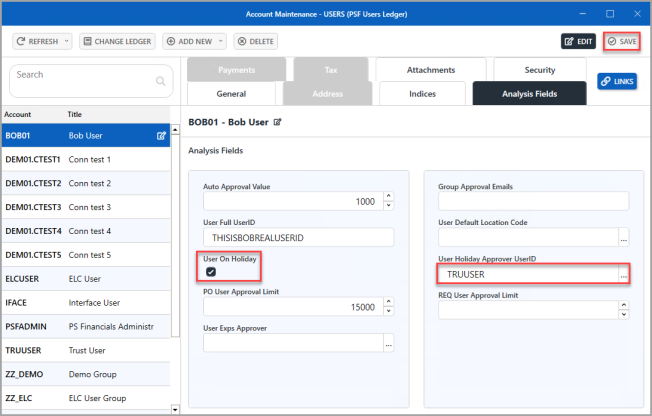
Select the Analysis Fields tab, then select EDIT. Applicable fields are then enabled.
-
Select... in User Holiday Approver UserID, then double-click the required user you want to authorise orders in the approver's absence from the Select USERS account dialog.
-
The holiday approver's ID then appears in User Holiday Approver UserID. If the user is on holiday, make sure you select User on Holiday, then select SAVE.
You must deselect User On Holiday when the approver returns from their leave.
-
An Update complete message appears. Select OK to close the message and return to the window.