Set a VAT approver
The Consolidated VAT Return automatically creates the VAT Transfer documents for each location and posts them to the REGISTER period for approval. An email is then sent to the applicable approver for each location advising the document needs to be approved before it is posted to an accounting period.
The applicable approver is typically set up in the ACADEMY or ENTITY ledger.
- Select Masters > Accounts, then select the ACADEMY (for Education builds) or ENTITY (for Commercial or Charity builds) ledger.
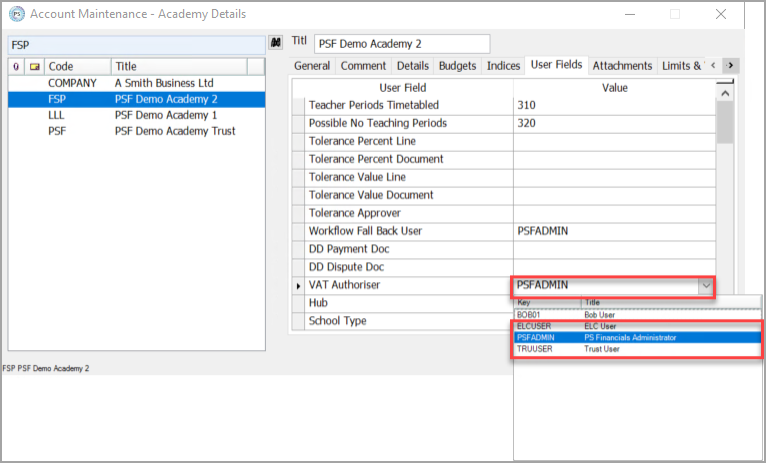
- The Account Maintenance dialog is displayed. Select the applicable location, then select the User Fields tab. The VAT Authoriser field displays the user who currently approves VAT transfer documents.
- To change or set a VAT approver, select the VAT Authoriser field, then select a new approver from the list.
- Click Apply.
If the new approver needs to authorise an existing VAT return that is currently sitting with another user to approve, you can re-poll the applicable documents. This will send the VAT return documents to the new approver. See Repolling Documents in IRIS Purchasing.